LexMatrix Guard
Parent & Mobile App User Guide
Version 1.7
This
guide and its detailed documentation are provided in English. Translated structural terms are provided for your
convenience.
← Back to Home Page
Parent & Mobile App User Guide
Silent process blocking, Accessibility Service & Device Admin tamper-resistance for Android phones and tablets (Android 8.0 / API 26+).
Apple Screen Time & Family Controls (ManagedSettings & DeviceActivity) native enforcement for iPhone and iPad (iOS 16.0+).
Banned platform URL blocking, search loophole shielding, and real-time heartbeat synchronization for Chrome, Edge, Brave, and Opera.
Operating-system level process enforcer with 3-layer anti-tamper persistence for Windows, macOS, and Linux computers.
LexMatrix Guard is a parental control system that protects children from harmful social media platforms and manages their screen time. It consists of two parts:
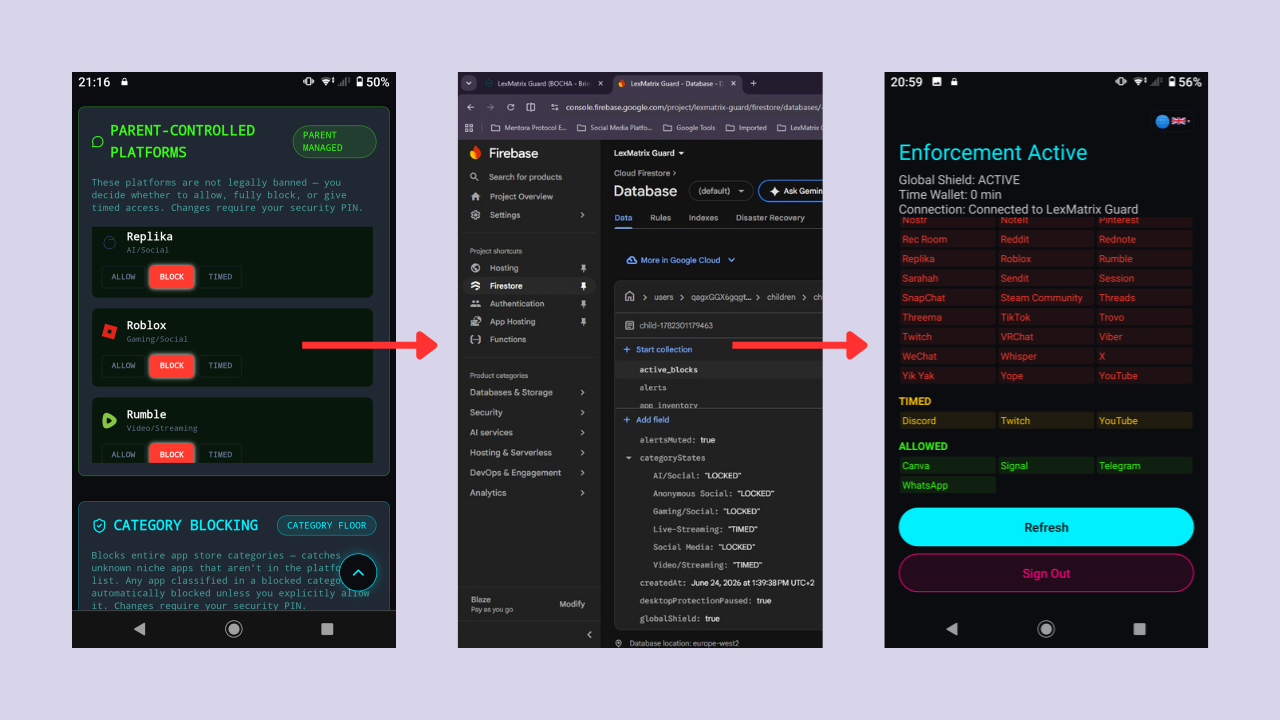
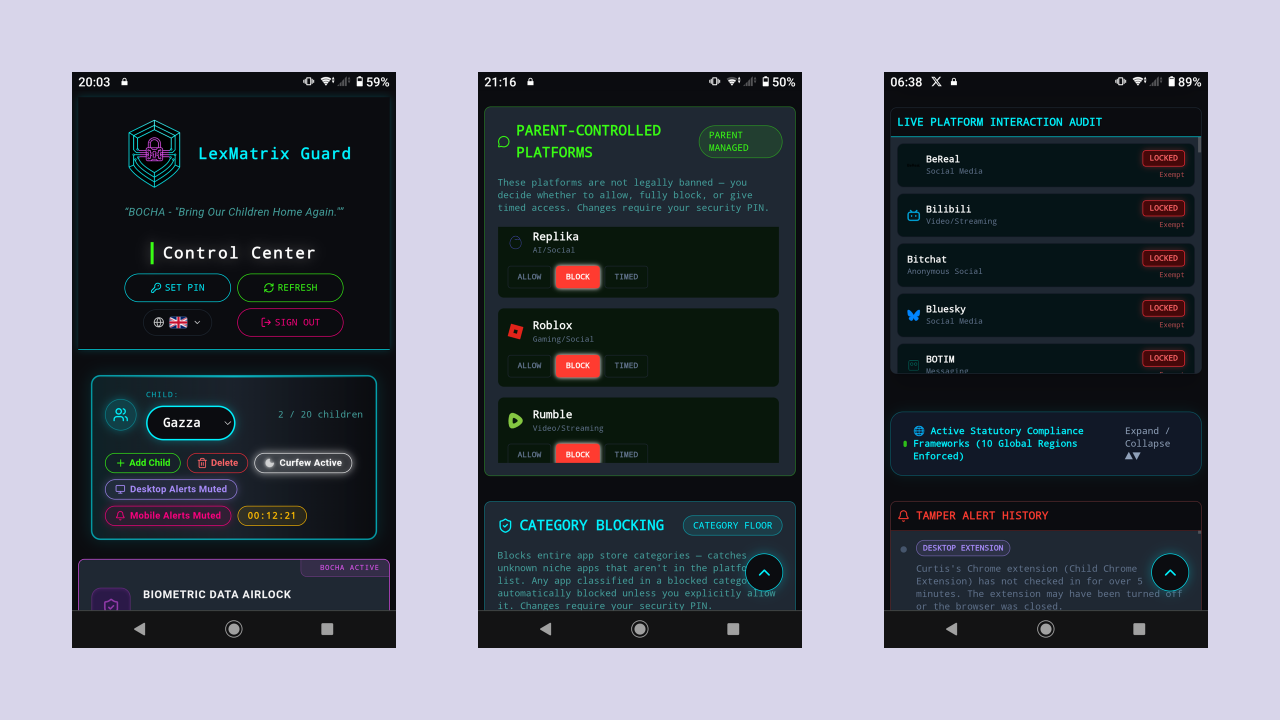
The system enforces 72 platforms — 10 legally-banned platforms for children under 16 (in compliance with Australian, Brazilian, Danish, French, Greek, Indonesian, Malaysian, Spanish, UAE, and UK online safety legislation) plus 62 parent-controlled loophole platforms that children migrate to when banned apps are locked. The following platforms are monitored:
| Platform | Category | Legal Status | Default State |
|---|---|---|---|
| Social Media | Banned (<16) | LOCKED | |
| Social Media | Banned (<16) | LOCKED | |
| Kick | Live-Streaming | Banned (<16) | LOCKED |
| Social Media | Banned (<16) | LOCKED | |
| SnapChat | Social Media | Banned (<16) | LOCKED |
| Threads | Social Media | Banned (<16) | LOCKED |
| TikTok | Social Media | Banned (<16) | LOCKED |
| Twitch | Live-Streaming | Banned (<16) | TIMED |
| X (Twitter) | Social Media | Banned (<16) | LOCKED |
| YouTube | Video/Streaming | Banned (<16) | TIMED |
These platforms are not legally banned but are commonly used as loophole alternatives. They default to LOCKED and parents can change them to TIMED or ALLOWED at any time.
| Platform | Category | Default State |
|---|---|---|
| BeReal | Social Media | LOCKED |
| Bilibili | Video/Streaming | LOCKED |
| Bitchat | Anonymous Social | LOCKED |
| Bluesky | Social Media | LOCKED |
| BOTIM | Messaging | LOCKED |
| Briar | Messaging | LOCKED |
| Bridgefy | Messaging | LOCKED |
| Canva | Productivity/Social | LOCKED |
| Character.ai | AI/Social | LOCKED |
| Chai | AI/Social | LOCKED |
| Civitai | AI/Social | LOCKED |
| Dailymotion | Video/Streaming | LOCKED |
| Discord | Messaging | LOCKED |
| DLive | Live-Streaming | LOCKED |
| Fizz | Anonymous Social | LOCKED |
| Fortnite | Gaming/Social | LOCKED |
| Gas | Anonymous Social | LOCKED |
| Geneva | Messaging/Community | LOCKED |
| Habbo Hotel | Gaming/Social | LOCKED |
| IMO | Messaging | LOCKED |
| IMVU | Gaming/Social | LOCKED |
| JanitorAI | AI/Social | LOCKED |
| Kik | Messaging/Social | LOCKED |
| Lemon8 | Social Media | LOCKED |
| Lemmy | Social Media | LOCKED |
| Line | Messaging/Social | LOCKED |
| Locket | Photo/Social | LOCKED |
| Mastodon | Social Media | LOCKED |
| Matrix/Element | Messaging | LOCKED |
| Minecraft | Gaming/Social | LOCKED |
| NGL | Anonymous Social | LOCKED |
| Platform | Category | Default State |
|---|---|---|
| Nostr | Decentralized Social | LOCKED |
| NoteIt | Photo/Social | LOCKED |
| Partiful | Social Media | LOCKED |
| Social Media | LOCKED | |
| Pixiv | Video/Streaming | LOCKED |
| Poly.AI | AI/Social | LOCKED |
| Rec Room | Gaming/Social | LOCKED |
| Rednote | Social Media | LOCKED |
| Replika | AI/Social | LOCKED |
| Retro | Social Media | LOCKED |
| Roblox | Gaming/Social | LOCKED |
| Rumble | Video/Streaming | LOCKED |
| Sarahah | Anonymous Social | LOCKED |
| Sendit | Anonymous Social | LOCKED |
| Session | Messaging | LOCKED |
| Signal | Messaging | LOCKED |
| SpicyChat AI | AI/Social | LOCKED |
| Steam Community | Gaming/Social | LOCKED |
| Telegram | Messaging | ALLOWED |
| Threema | Messaging | LOCKED |
| Trovo | Live-Streaming | LOCKED |
| Viber | Messaging | LOCKED |
| VRChat | Gaming/Social | LOCKED |
| VSCO | Social Media | LOCKED |
| Messaging/Social | LOCKED | |
| Messaging | ALLOWED | |
| Whisper | Anonymous Social | LOCKED |
| Wizz | Social Media | LOCKED |
| Yik Yak | Anonymous Social | LOCKED |
| Yope | Social Media | LOCKED |
| Yubo | Social Media | LOCKED |
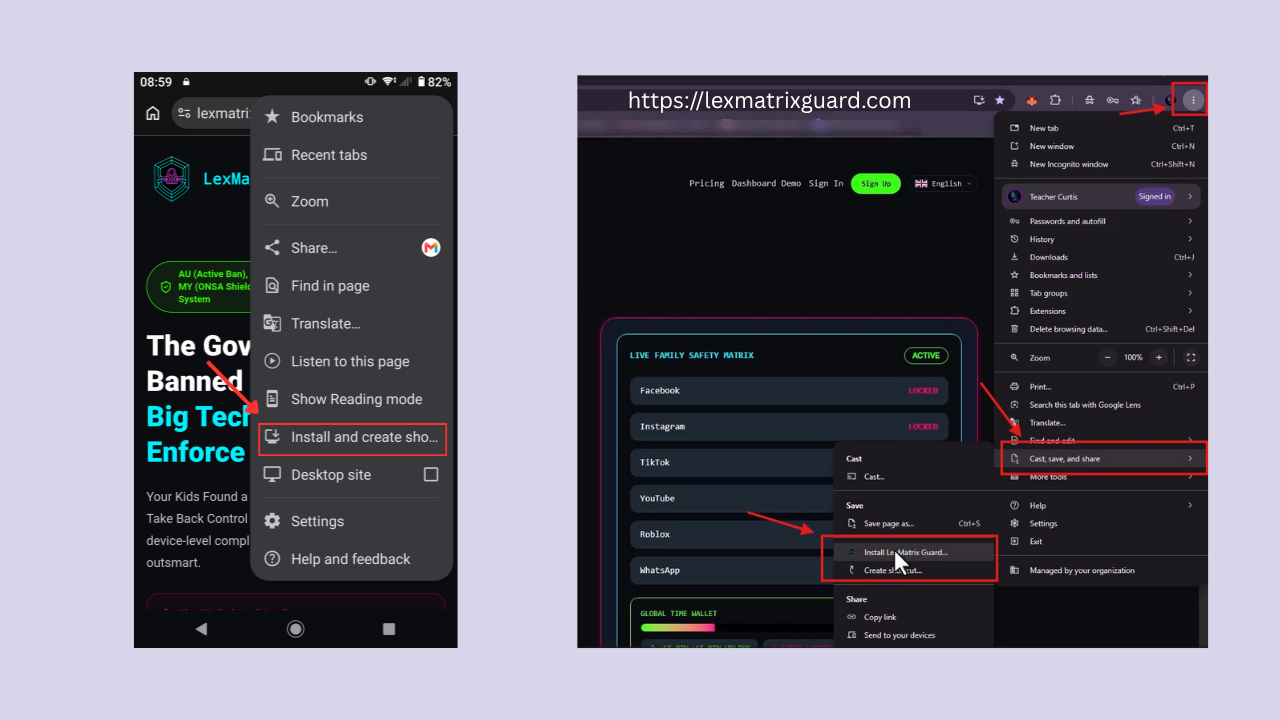
The parent dashboard is a Progressive Web App (PWA). You don't need to install anything from an app store — simply open your browser and go to:
https://lexmatrixguard.com/dashboard
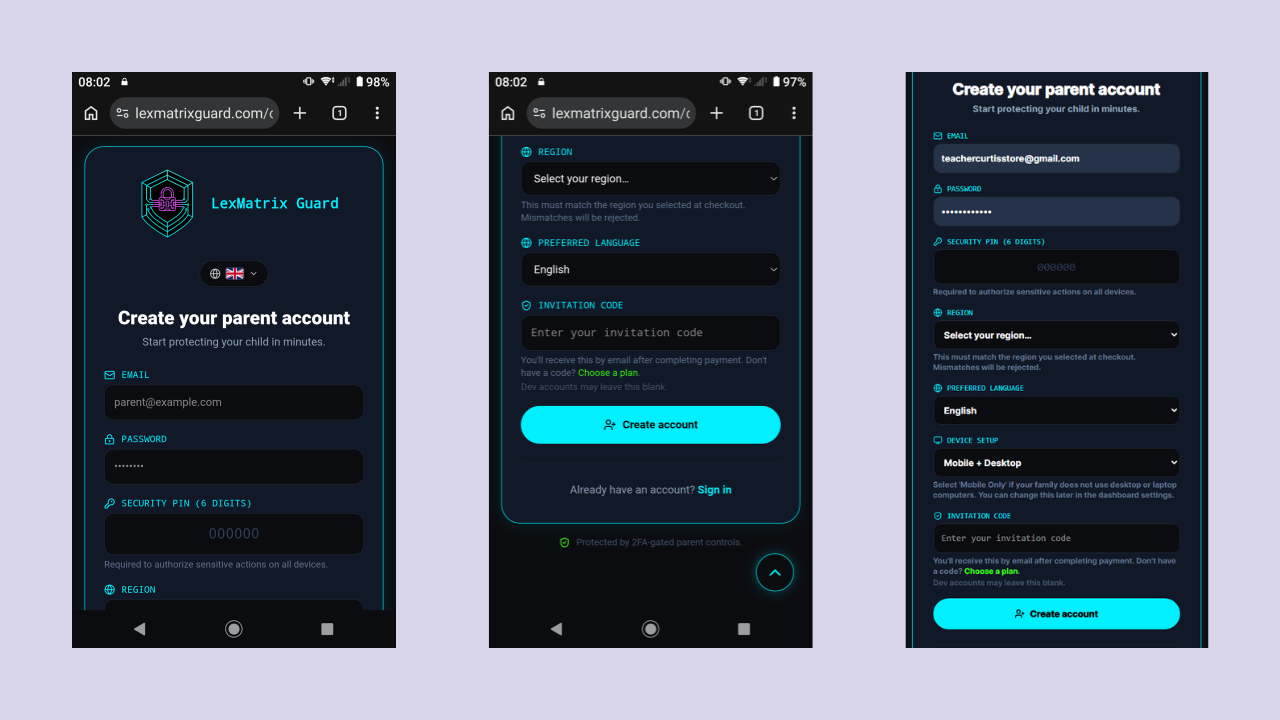
Account creation is invitation-gated for security. You'll need an invitation code to register.
After creating your account, a verification email is sent to your inbox:
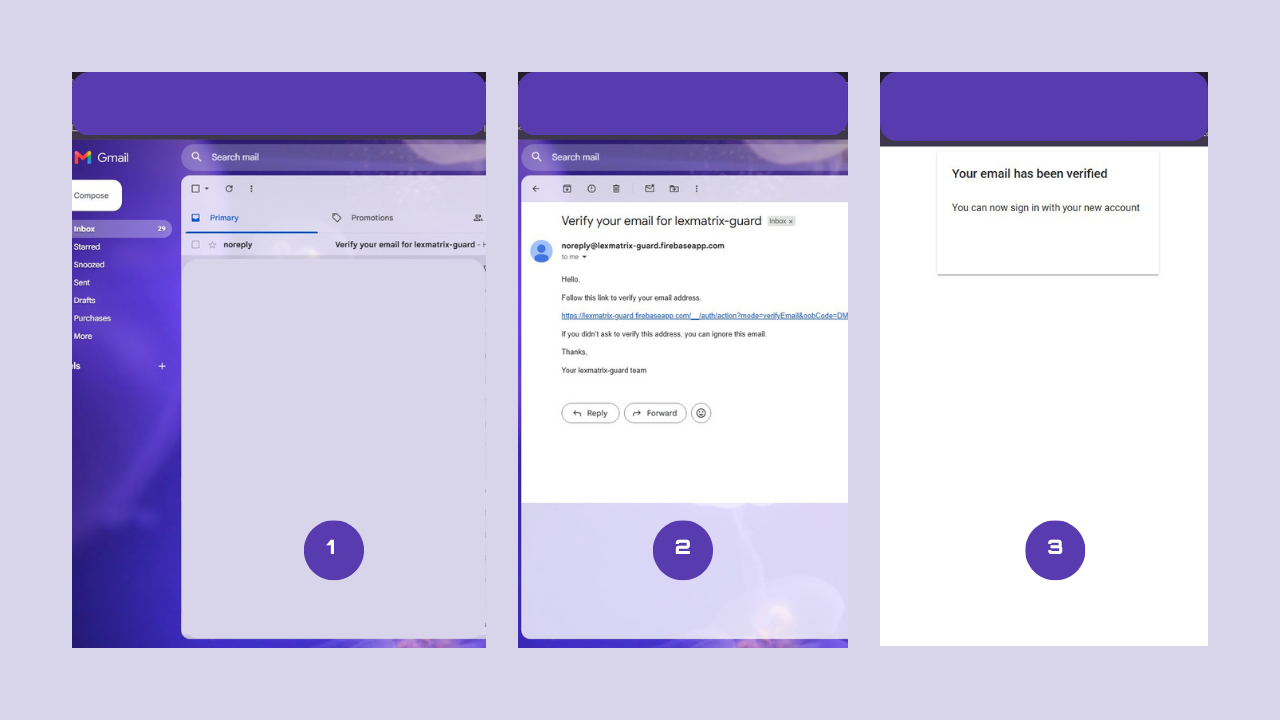
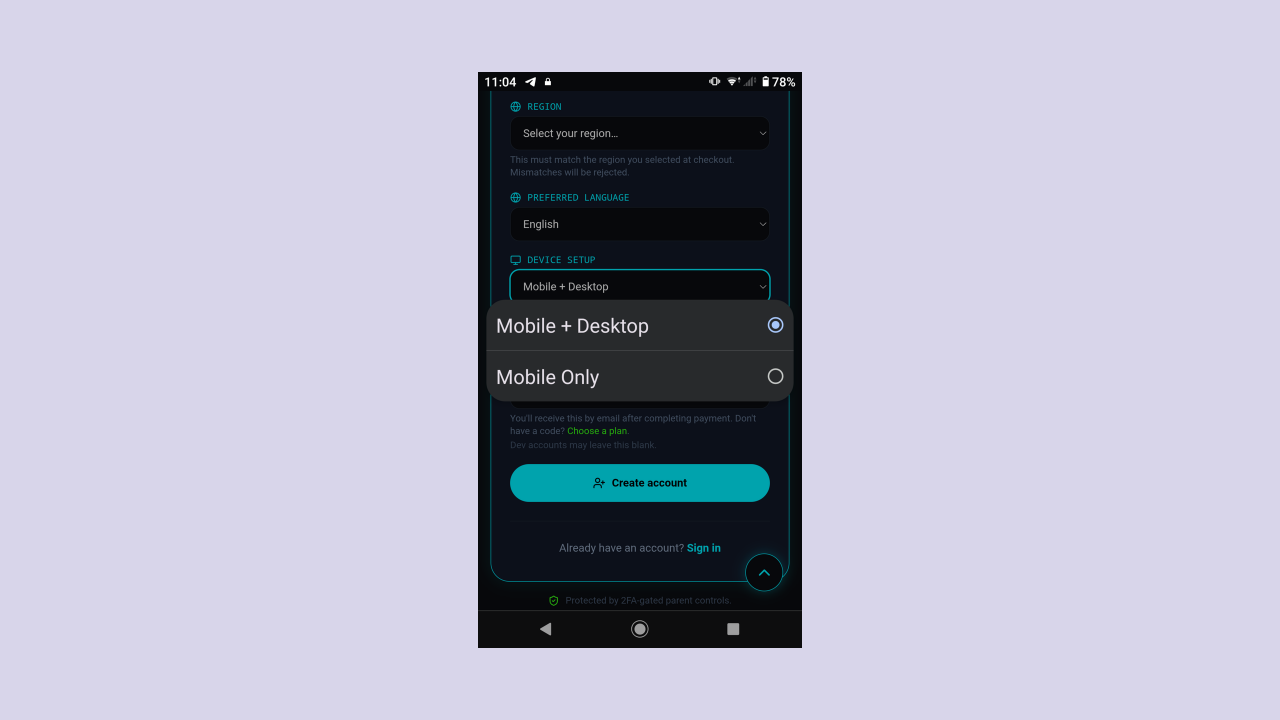
During sign-up, you'll choose your Device Setup mode. This determines whether desktop protection features (browser extension, daemon, heartbeat monitoring, desktop alerts) are visible in your dashboard.
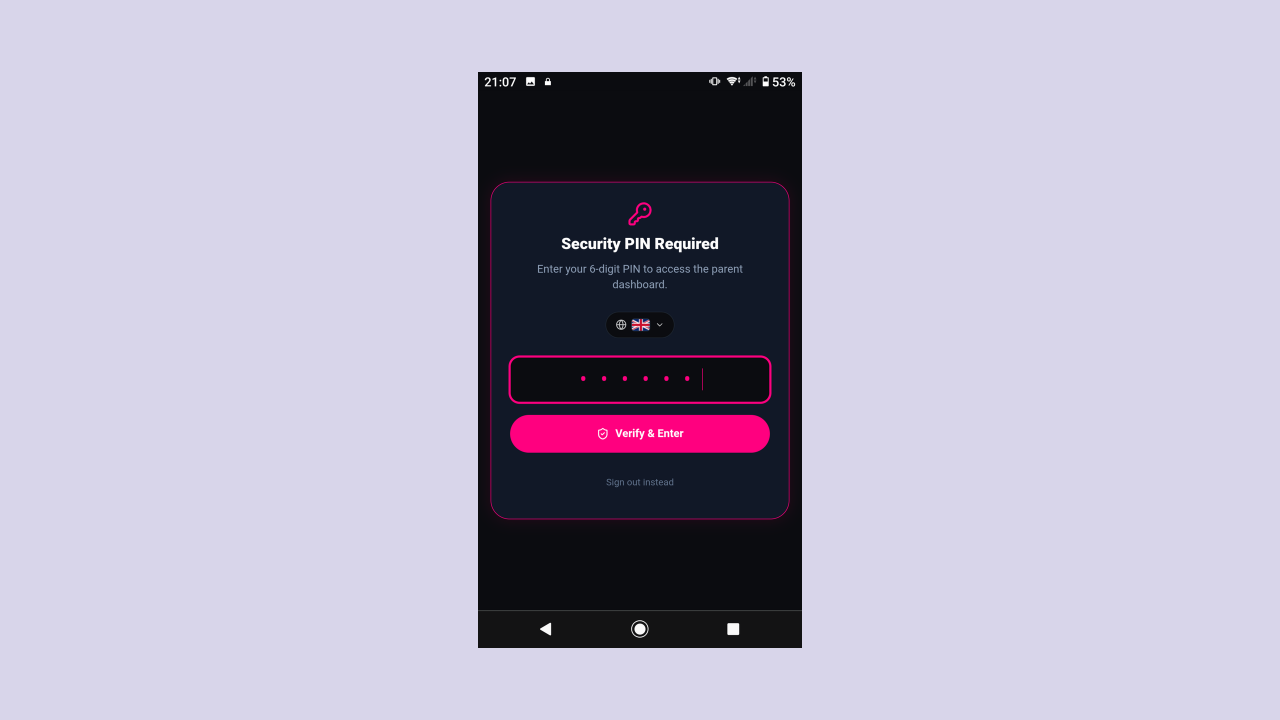
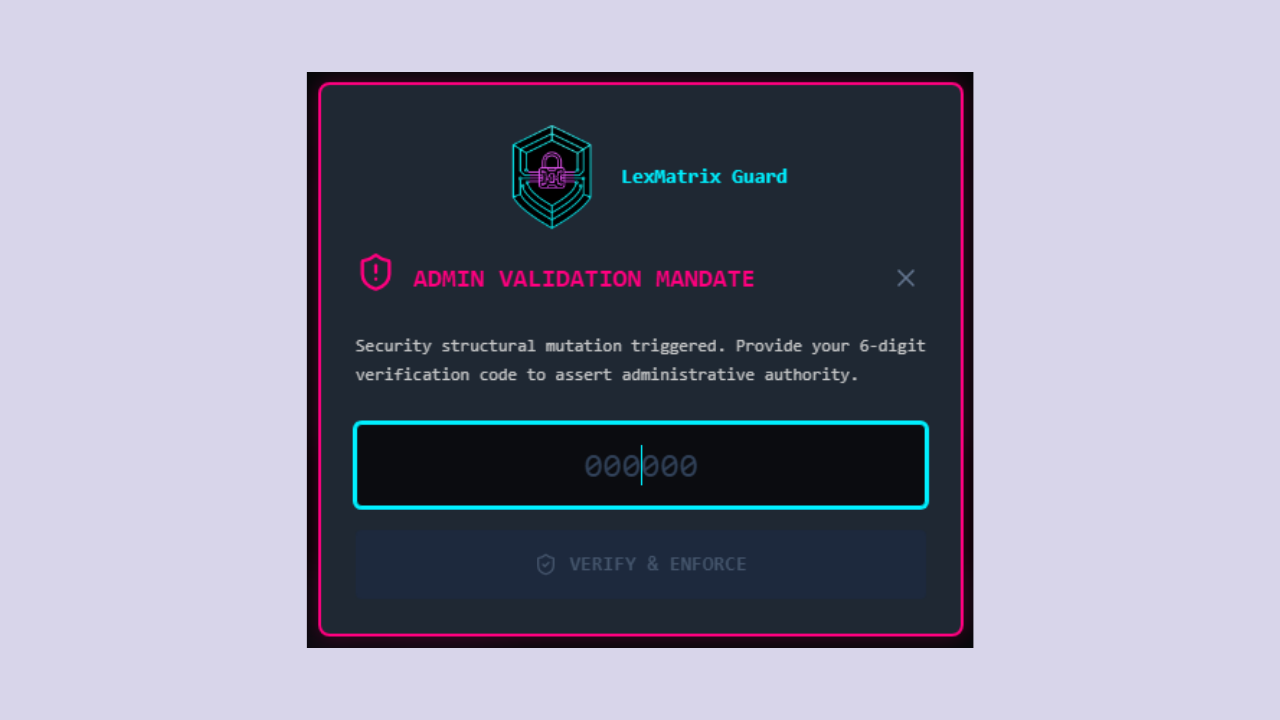
Once your email is verified, you'll be prompted to enter your 6-digit Security PIN to access the dashboard. This is the PIN you set during sign-up.
If you already have an account:
If you forgot your password, click "Forgot password?" on the sign-in screen to receive a reset email.
After signing in, you'll see the main dashboard. This is your control centre. The dashboard is organised into the following sections, each explained in detail in the sections below:
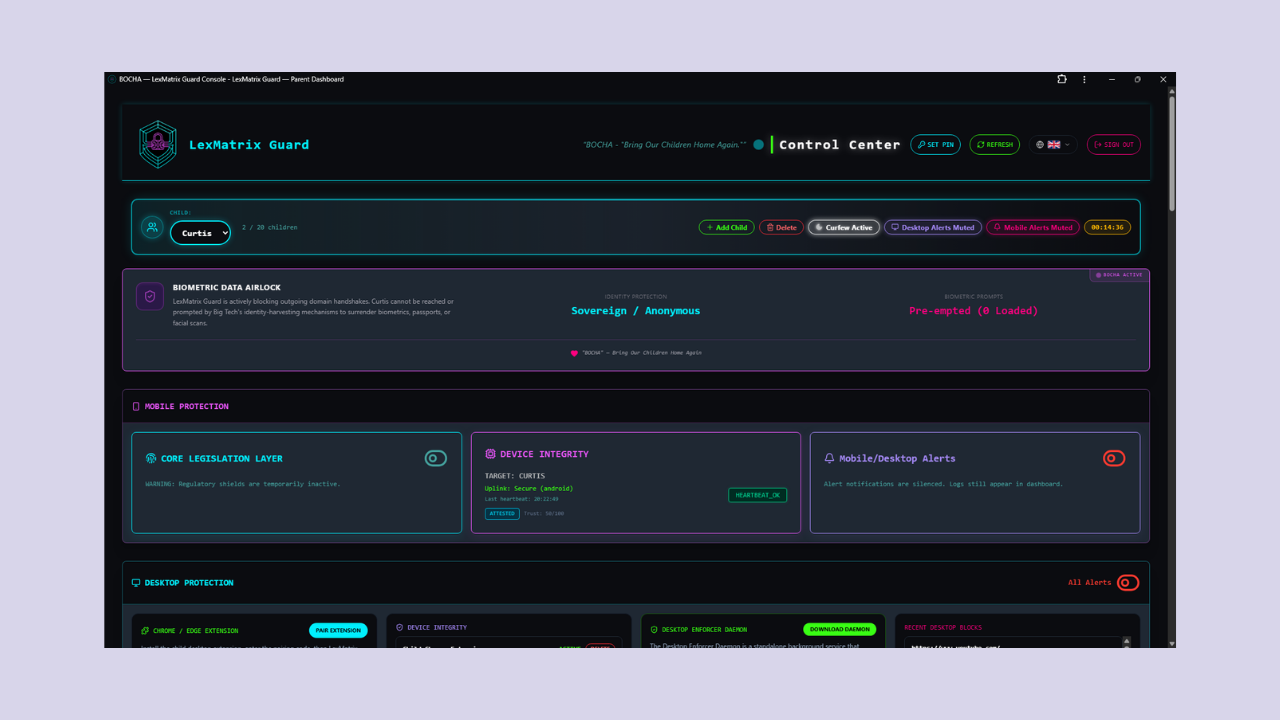
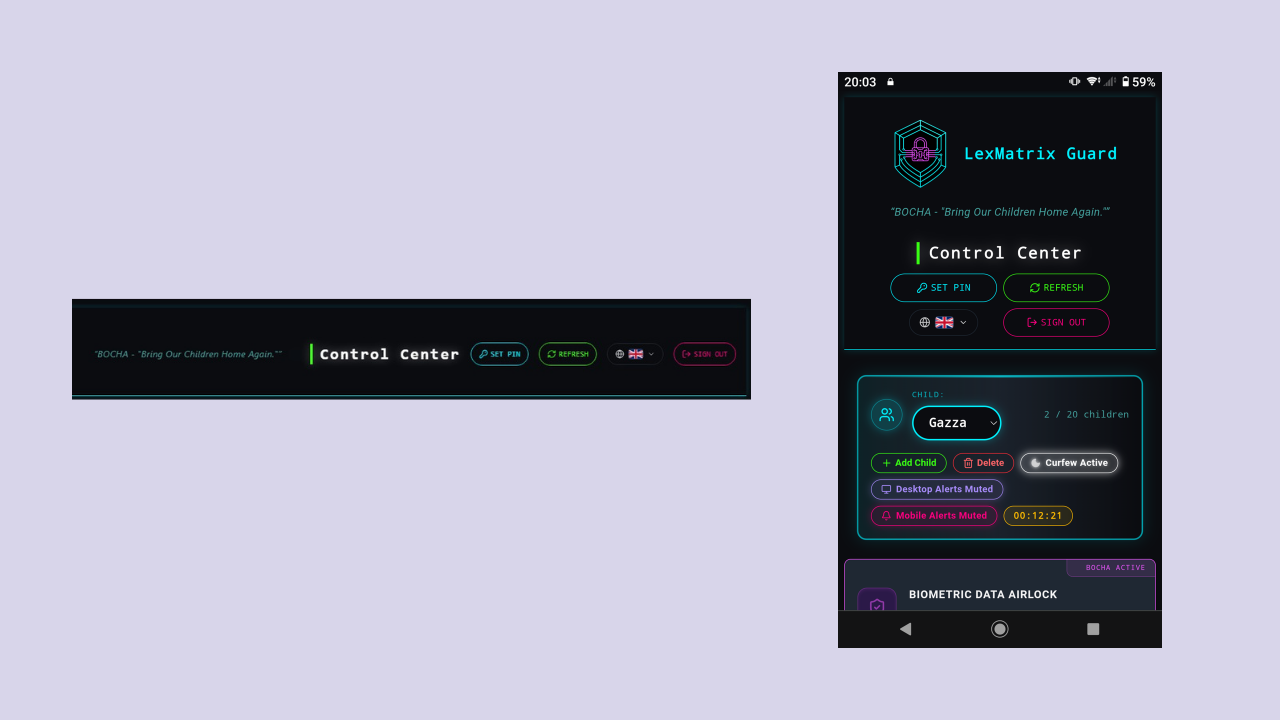
The top navigation bar contains:
The Curfew card lets you schedule a nightly quiet period during which alerts are suppressed and child devices are locked. This ensures you wake up to a clean dashboard without overnight alert spam.
When curfew is active:
isWithinCurfew() and skips
Firestore writes, FCM pushes, or auto-acknowledges based on your settings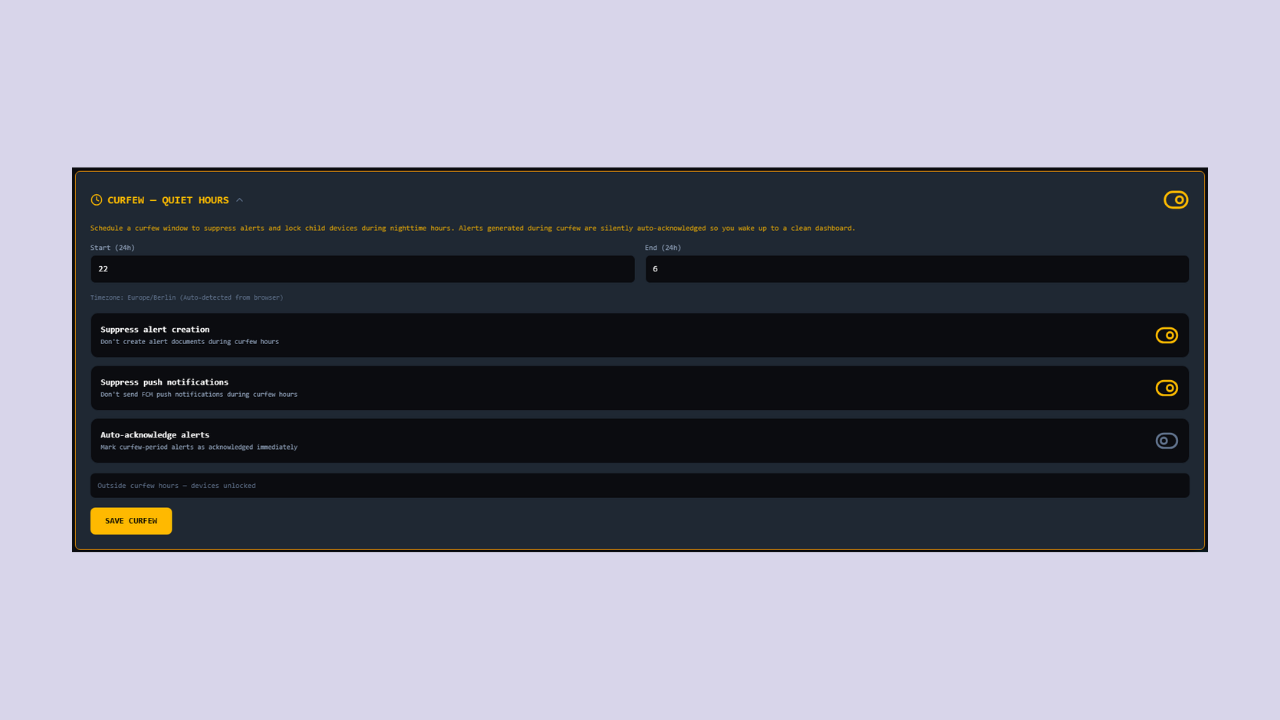
The Device Setup Mode card lets you switch between Mobile Only and Mobile + Desktop modes. This controls whether the Desktop Protection section (browser extension pairing, daemon download, heartbeat monitoring, desktop tamper alerts) is visible in your dashboard.
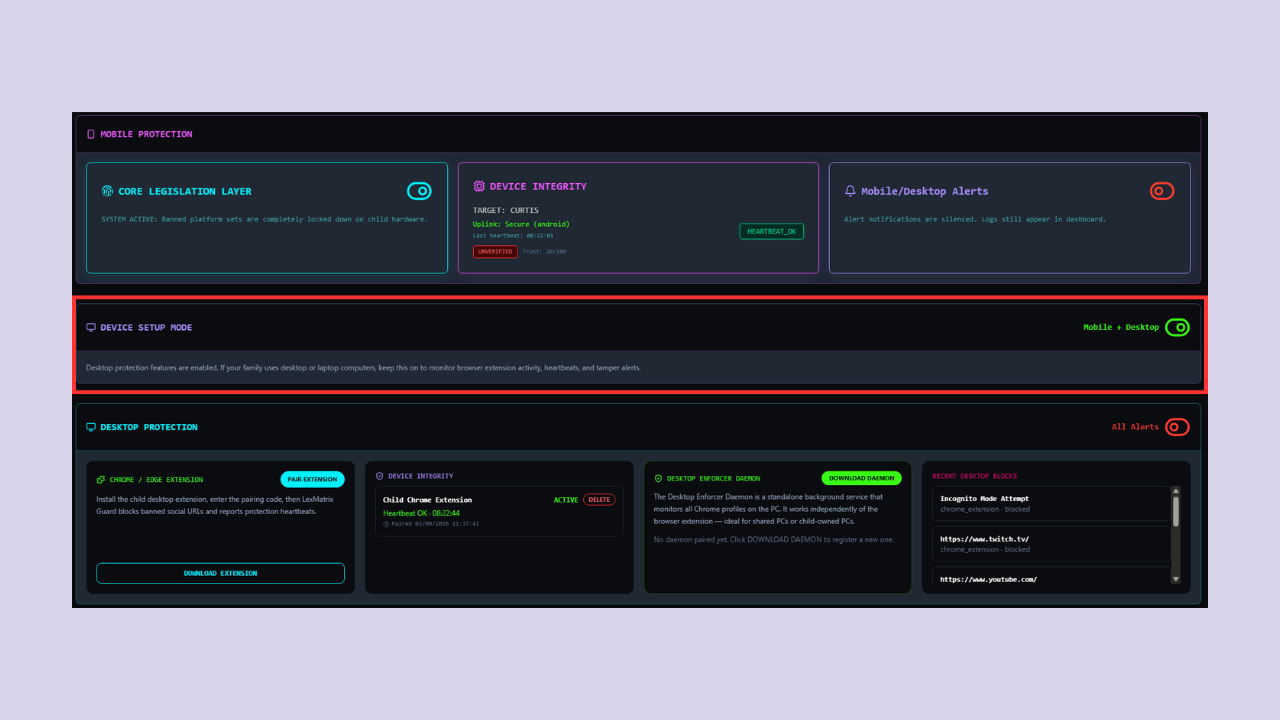
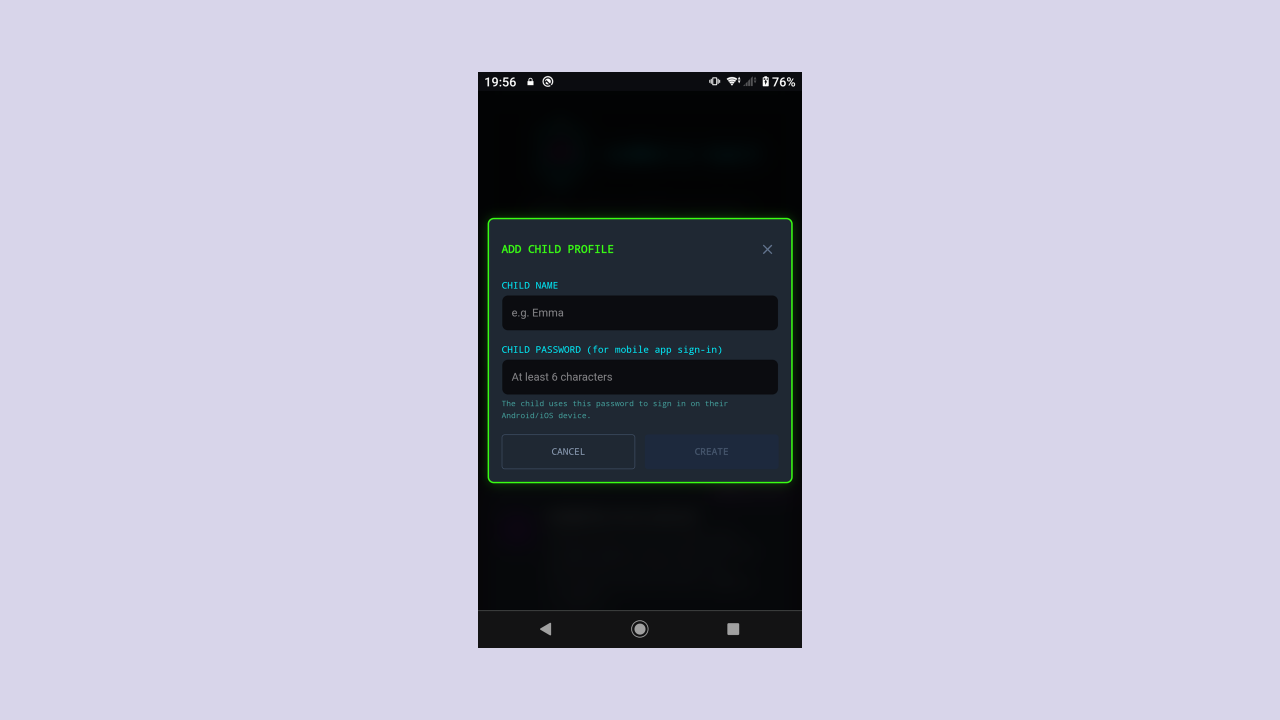
You can manage multiple children from a single parent account. Each child has their own profile, enforcement settings, and mobile app sign-in credentials.
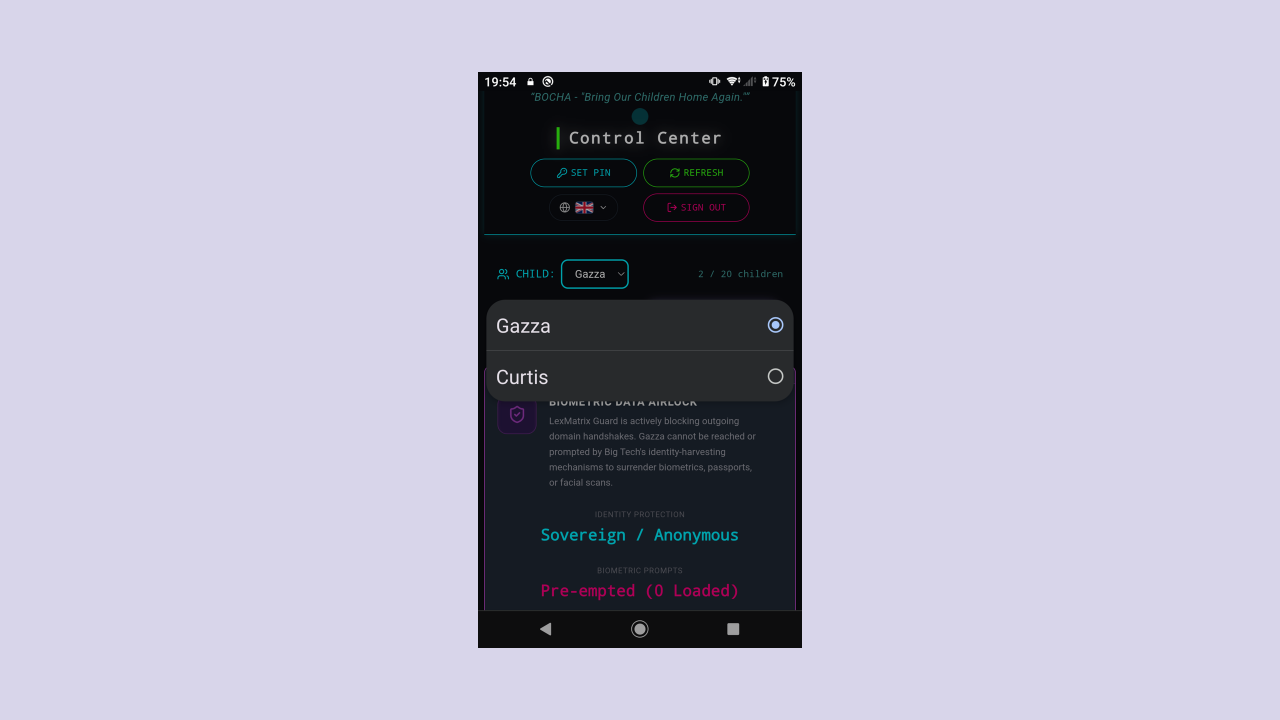
Use the CHILD dropdown selector at the top of the dashboard to switch between child profiles. The dashboard updates to show the selected child's settings and device status.
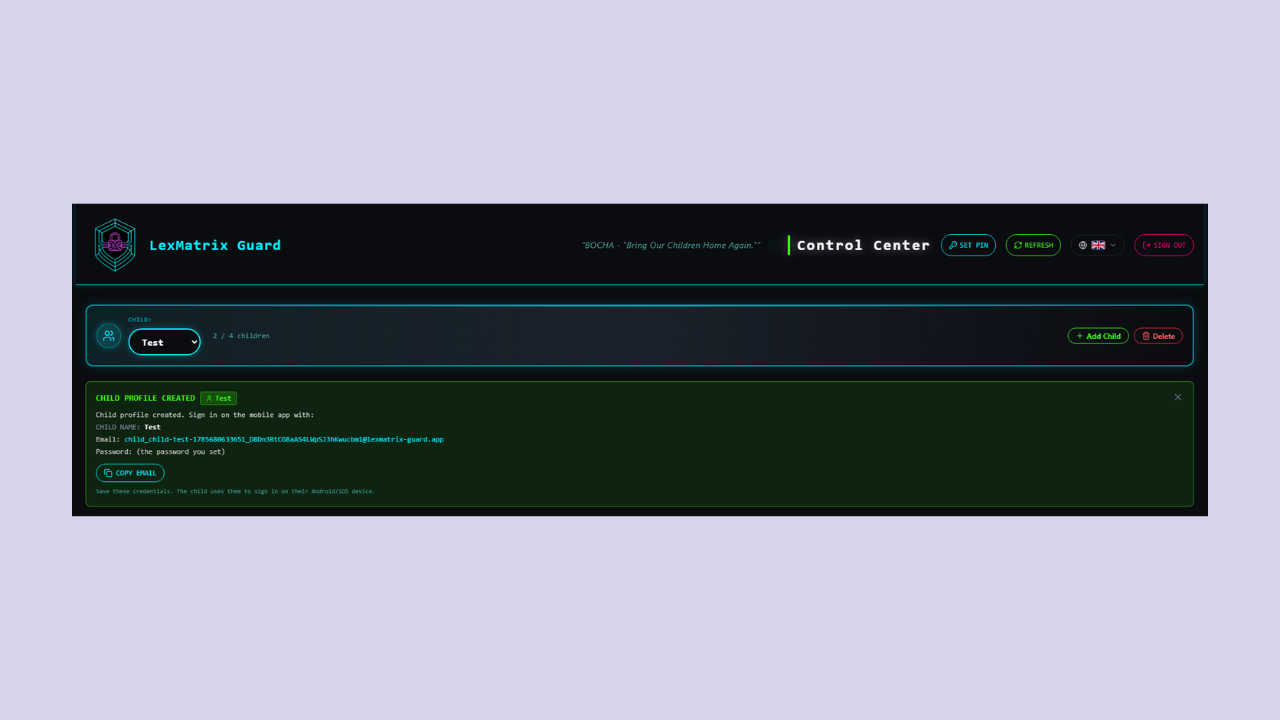
After creating the profile, a green notice box appears showing the child's generated email address and reminding you of the password you set. These are the credentials your child will use to sign in on their mobile device.
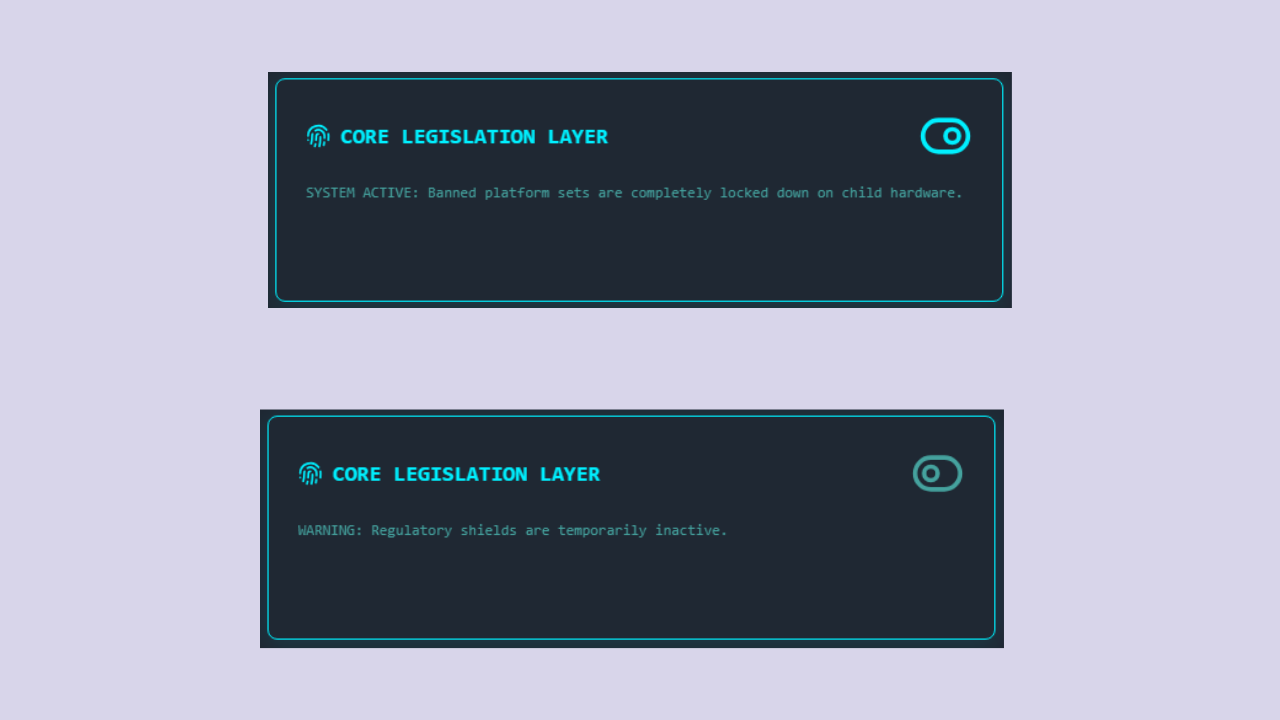
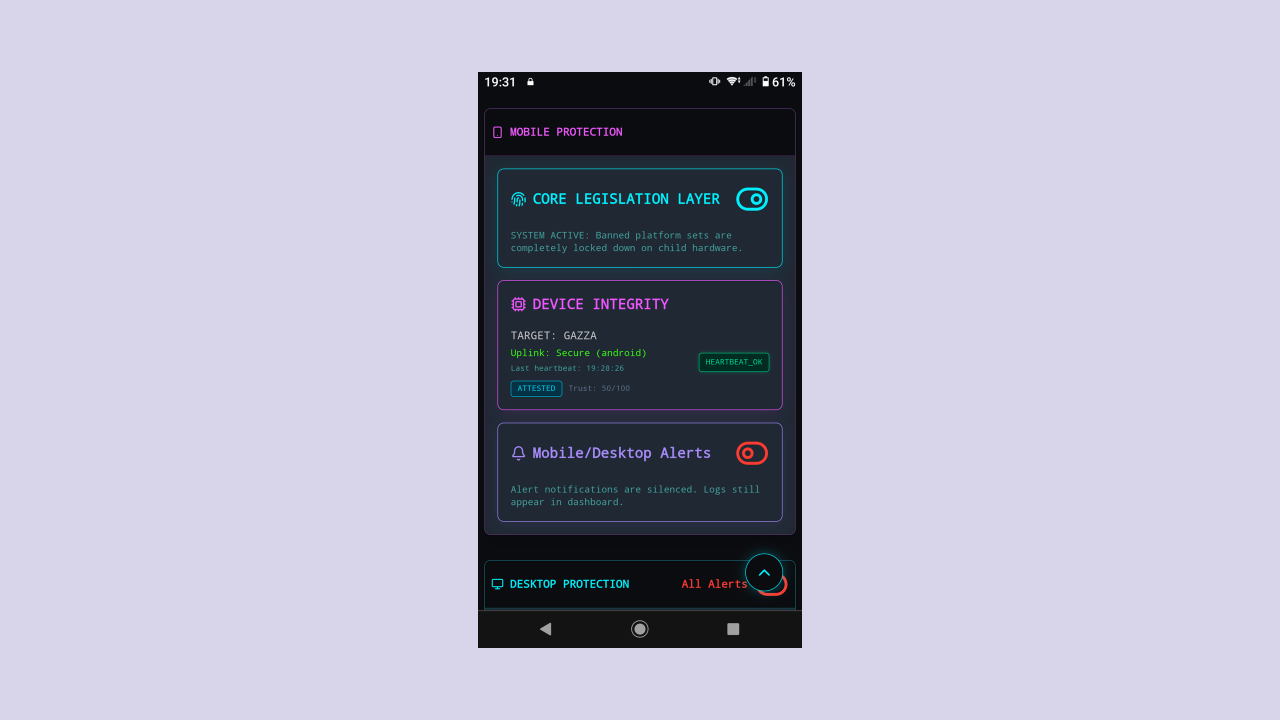
The Core Legislation Layer is the master switch for legally-banned platform enforcement. When active (toggle to the right, cyan colour), all banned platforms are locked down on your child's device.
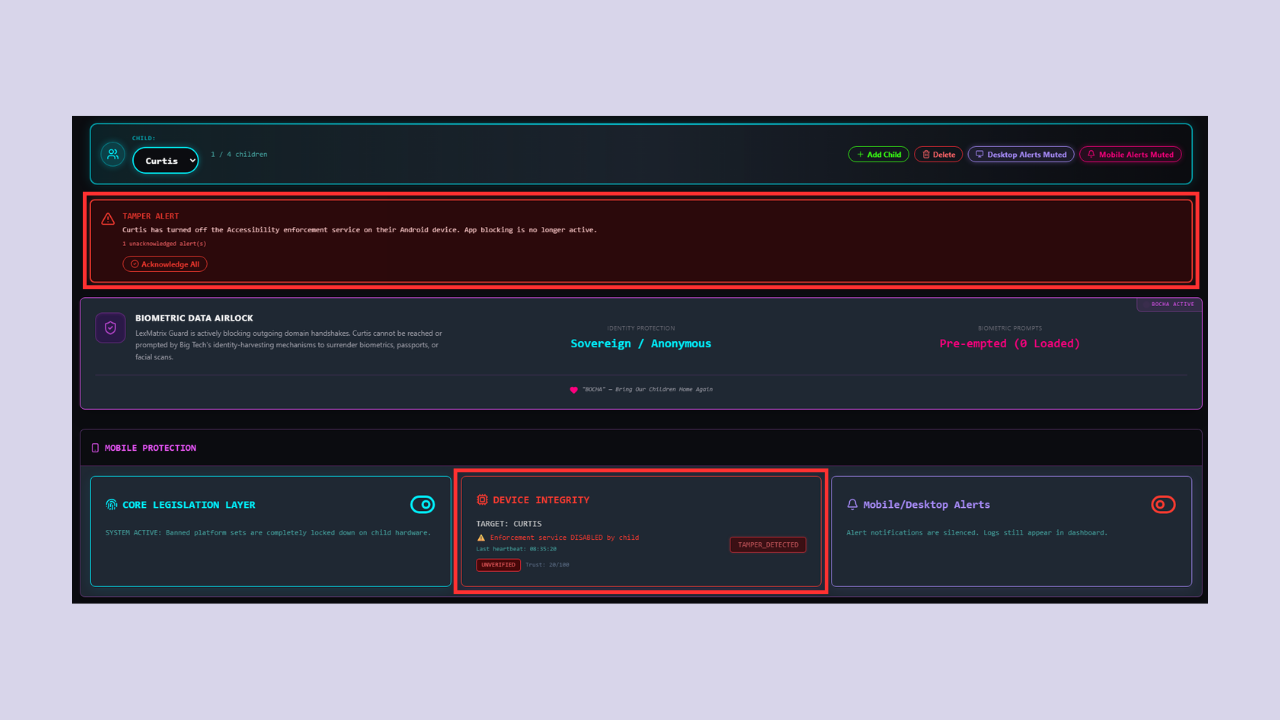
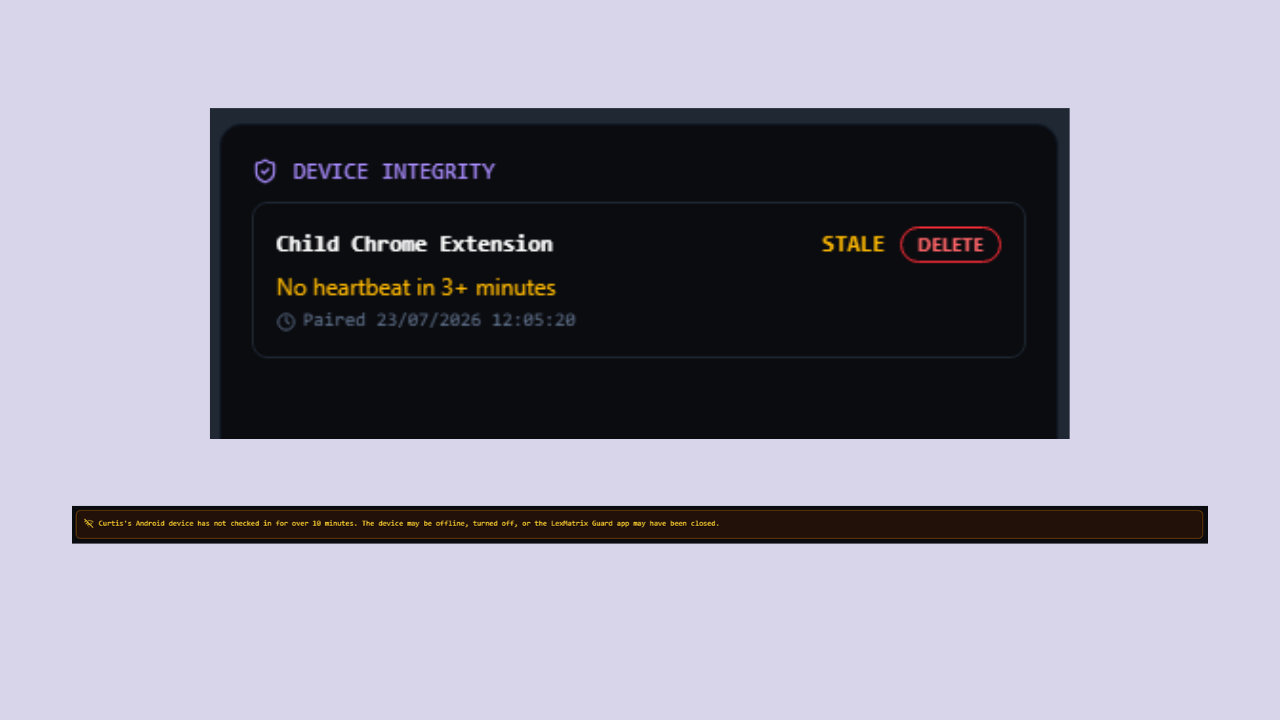
The Device Integrity card shows the real-time status of your child's device. It displays:
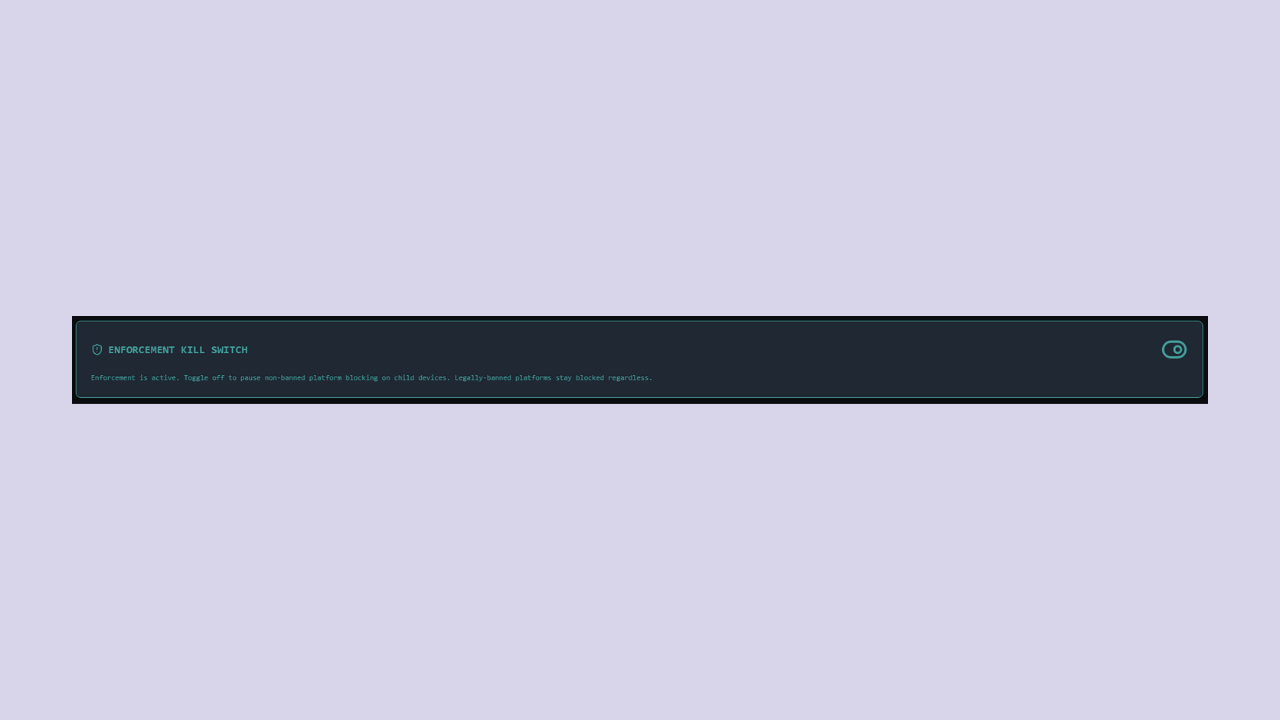
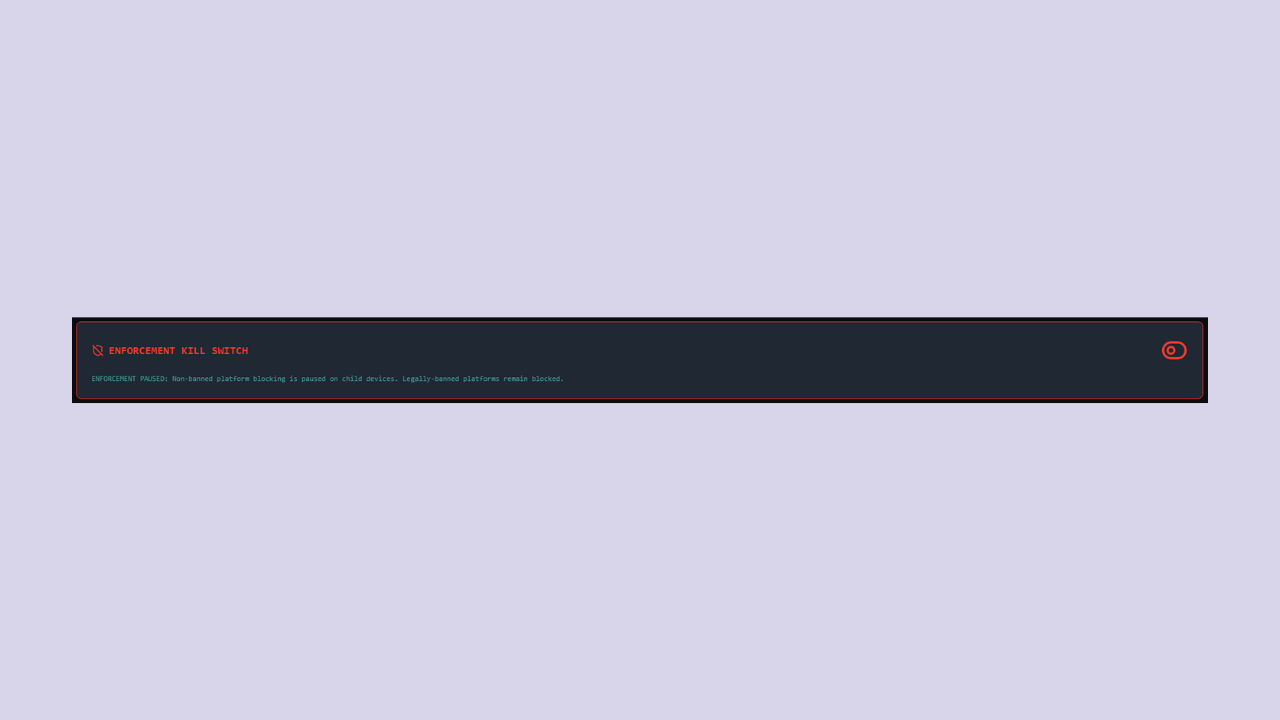
The Enforcement Kill Switch is an emergency control that lets you remotely disable all platform blocking on your child's device. This is useful if you need to temporarily grant full access (e.g. for a school requirement).
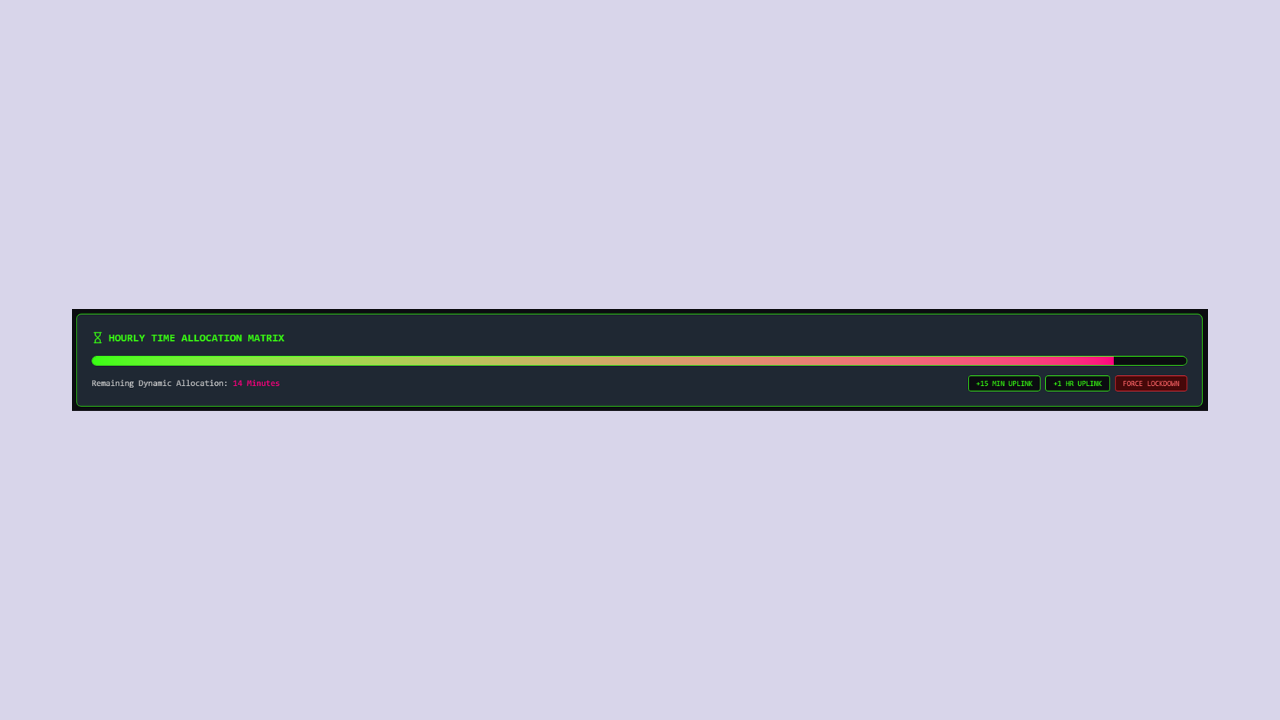
The Time Allocation Matrix controls how much time your child can spend on TIMED platforms (currently Twitch and YouTube). The time budget is shared across all timed apps.
Click "+15 MIN UPLINK" to add 15 minutes or "+1 HR UPLINK" to add 1 hour to the time budget. Both require your Security PIN — all budget mutations are PIN-gated to prevent unauthorised time grants. The maximum allocation is 360 minutes (6 hours); both buttons are disabled once the cap is reached.
Click "FORCE LOCKDOWN" to immediately zero out the time budget and lock all timed apps. This requires your Security PIN.
SystemClock.elapsedRealtime(), ProcessInfo.systemUptime, and
performance.now() respectively) instead of wall-clock time. This prevents your child from extending
timed access by changing the device clock. iOS also detects backward clock jumps greater than 60 seconds and
triggers a re-sync.
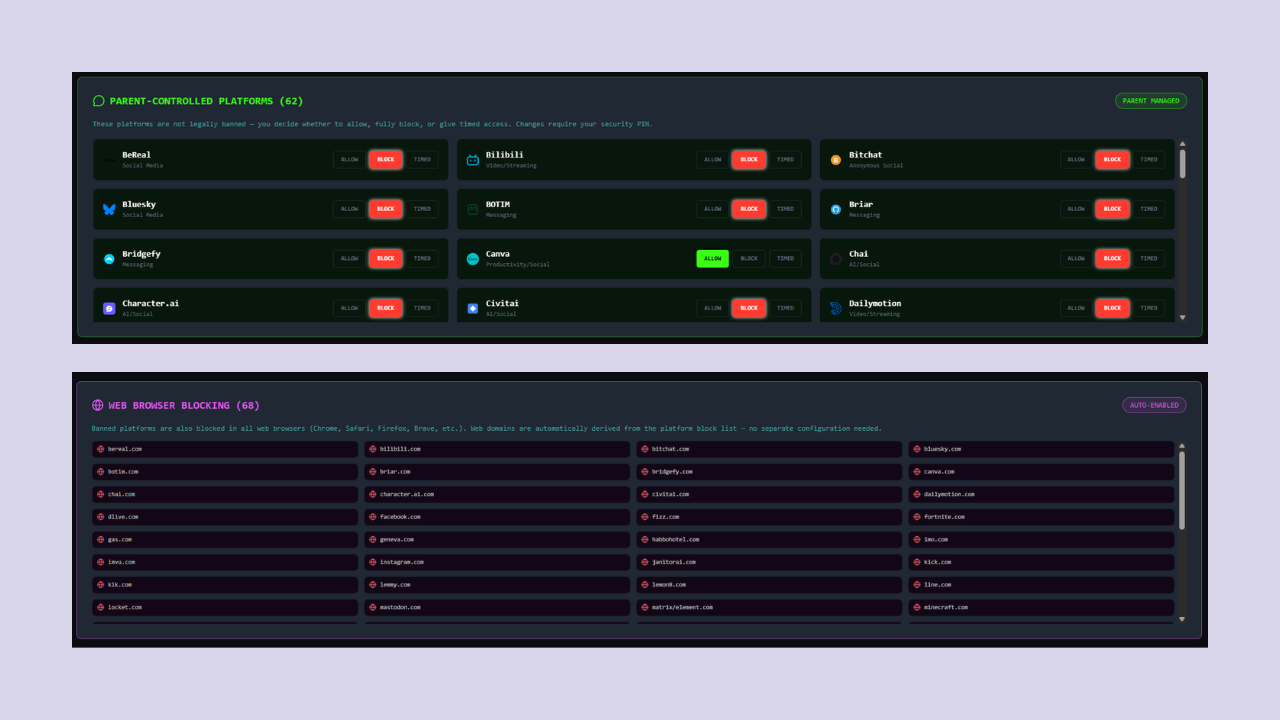
While legally-banned platforms (Facebook, Instagram, TikTok, etc.) are enforced automatically by the server-side legal list, 62 platforms are exempt from the legal ban and fully parent-controllable. These include messaging apps (WhatsApp, Telegram, Discord, Signal, Session, WeChat, Viber, Threema, Line, IMO, BOTIM, Kik), gaming/social hubs (Roblox, Fortnite, Minecraft, VRChat, Rec Room, IMVU, Habbo Hotel, Steam Community), niche social apps (Rednote, Lemon8, Yope, BeReal, Pinterest, Bluesky, Mastodon, Lemmy, Nostr), anonymous apps (Whisper, NGL, Yik Yak, Sarahah, Sendit, Fizz), AI companion apps (Character.ai, Replika, Chai), video/streaming platforms (Bilibili, Dailymotion, Rumble, Trovo, DLive), and photo/utility apps (Canva, Locket, NoteIt, Geneva, Matrix/Element).
Most of these default to LOCKED to close loophole migration gaps. WhatsApp and Telegram default to ALLOWED for family communication. You can toggle each one between three states at any time. Every change requires your 6-digit Security PIN and is verified server-side.
| State | Badge | Effect |
|---|---|---|
| ALLOW | ALLOWED | The platform is freely accessible — no blocking on any device. |
| BLOCK | LOCKED | The platform's app and web domains are blocked on all enforcement clients (mobile + desktop extension). |
| TIMED | TIMED | The platform is allowed only while the Time Wallet has remaining budget. When the budget exhausts, the platform is automatically blocked. |
updatePolicy Cloud
Function
with platformStates: { [platformName]: state }. The syncActiveBlocks trigger then
updates
active_blocks/current, which mobile apps and the desktop browser extension read in real time.
All changes are audit-logged to policy_audit/{timestamp}.
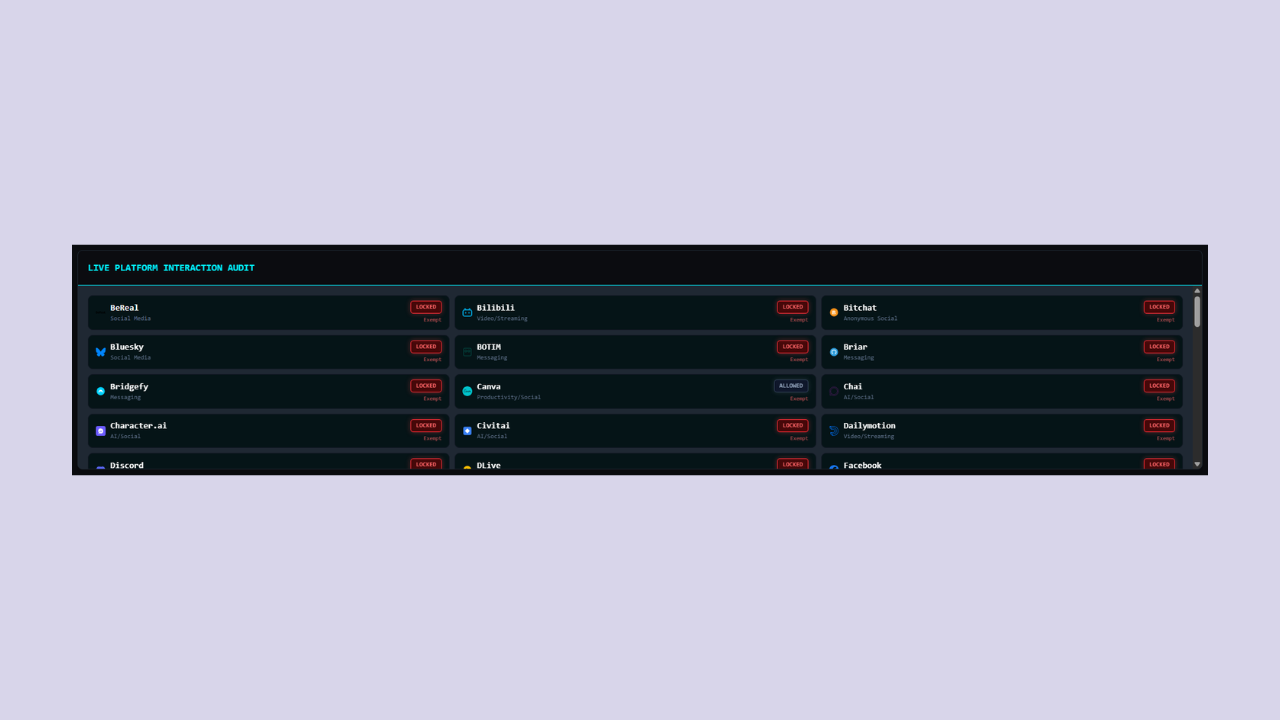
This table shows every monitored platform, its category, legal status, and current enforcement state. It gives you a quick at-a-glance view of what's blocked, timed, or allowed on your child's device.
Below the platform table, region pills are organized into 5 continent groups indicating which legal frameworks are being enforced:
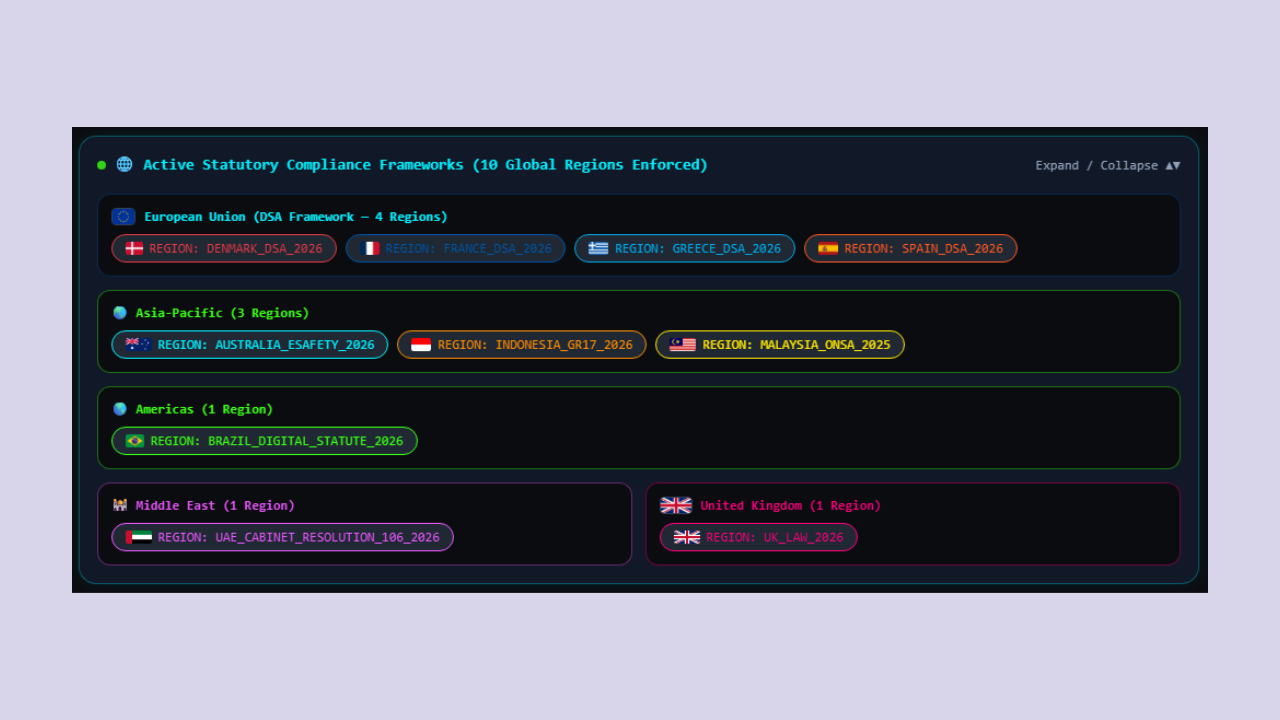
In addition to blocking 72 individual platforms by name, LexMatrix Guard enforces 6 restricted categories that catch unknown or emerging apps by their type. Even if a niche app isn't in our 72-platform list, category blocking ensures it's still blocked based on what kind of app it is.
| Category | Description | Default State |
|---|---|---|
| Social Media | Social networking apps (Facebook, Instagram, TikTok, etc.) | LOCKED |
| Live-Streaming | Live broadcast platforms (Twitch, Kick, DLive, Trovo) | LOCKED |
| Gaming/Social | Gaming platforms with social features (Roblox, Fortnite, Minecraft, VRChat) | LOCKED |
| Anonymous Social | Anonymous/ephemeral social apps (Whisper, NGL, Yik Yak, Sarahah) | LOCKED |
| AI/Social | AI companion and social AI apps (Character.ai, Replika, Chai) | LOCKED |
| Video/Streaming | Video sharing and streaming platforms (YouTube, Bilibili, Dailymotion, Rumble) | TIMED |
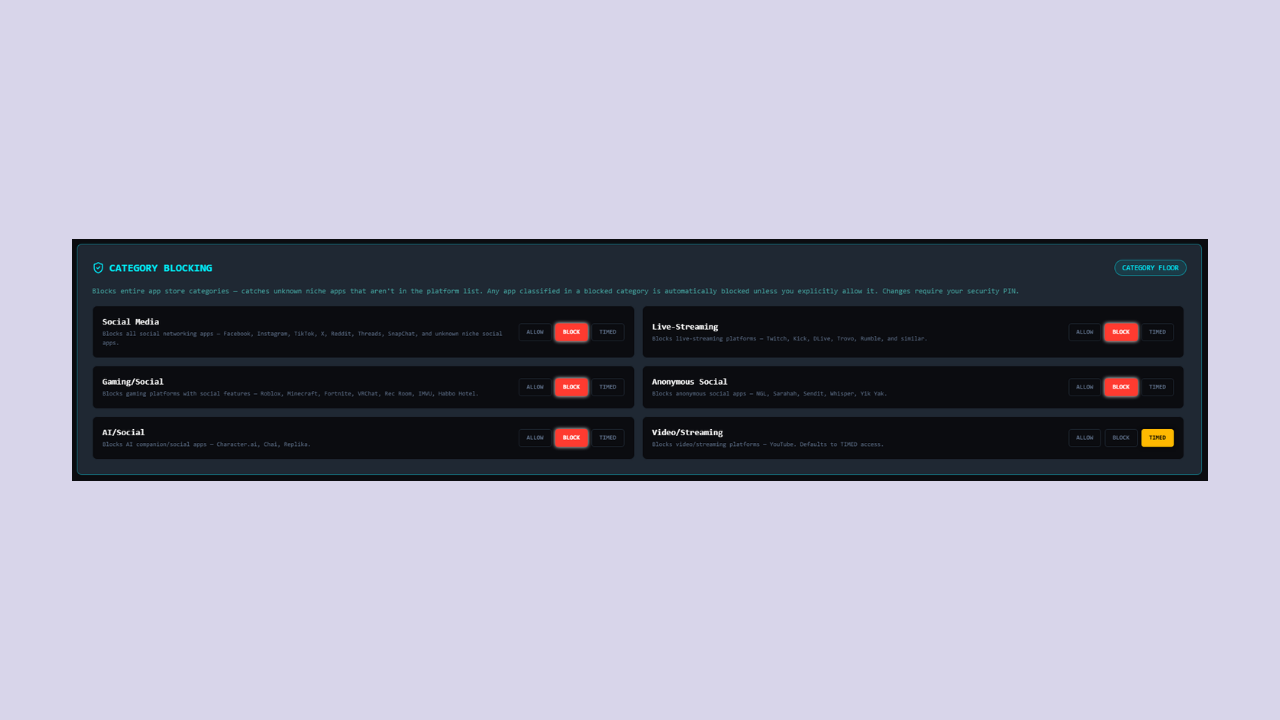
LexMatrix Guard maintains a DNS domain blocklist on iOS devices that mirrors your category and platform blocking settings. When the iOS Network Extension is active, DNS queries for blocked domains are intercepted and resolved to NXDOMAIN, preventing the child from reaching restricted sites via alternative DNS servers, VPN apps that route DNS externally, or DNS-over-HTTPS (DoH) / DNS-over-TLS (DoT) services.
When category or platform blocking is active on iOS and the Network Extension is operational, the enforcement app intercepts DNS queries and blocks resolution of any domain in the DNS blocklist. Blocked queries receive an NXDOMAIN response, causing the device to believe the domain does not exist — rather than simply timing out.
The DNS blocklist is maintained on all plans, but network-level interception only occurs when the iOS Network Extension is active. When the extension is not active, domain matching is still performed at the app level. DNS filtering is currently supported on iOS devices only.
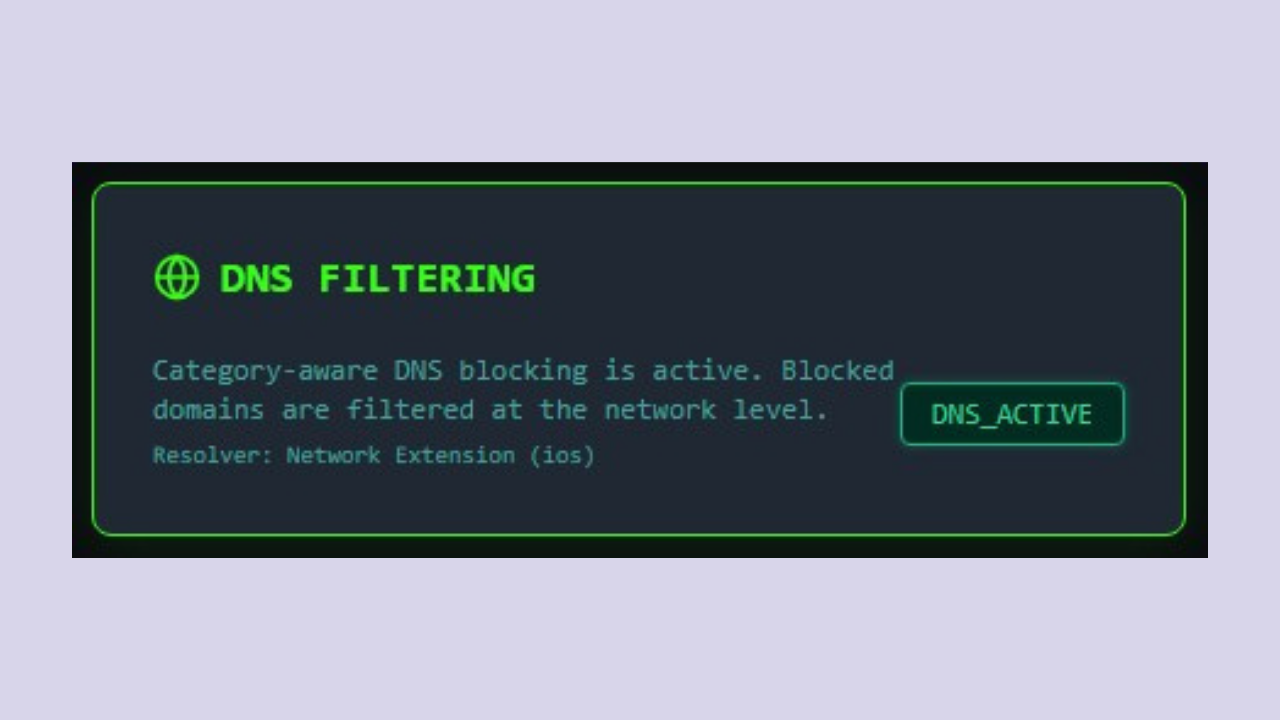
The dashboard displays a "DNS FILTERING" status card in the Mobile Protection section (visible only for iOS devices), next to the Core Legislation Layer and Device Integrity cards. The card shows one of the following states:
The card also shows the resolver type — Network Extension for iOS — based on the child's device platform.
LexMatrix Guard scans your child's device every 30 minutes and reports all installed apps to your dashboard. This gives you complete visibility of what's on your child's device, not just the platforms you've explicitly configured.
The "Installed App Inventory" section appears on the dashboard below the Platform Interaction Audit. It lists every non-system app installed on your child's device, sorted alphabetically, showing:
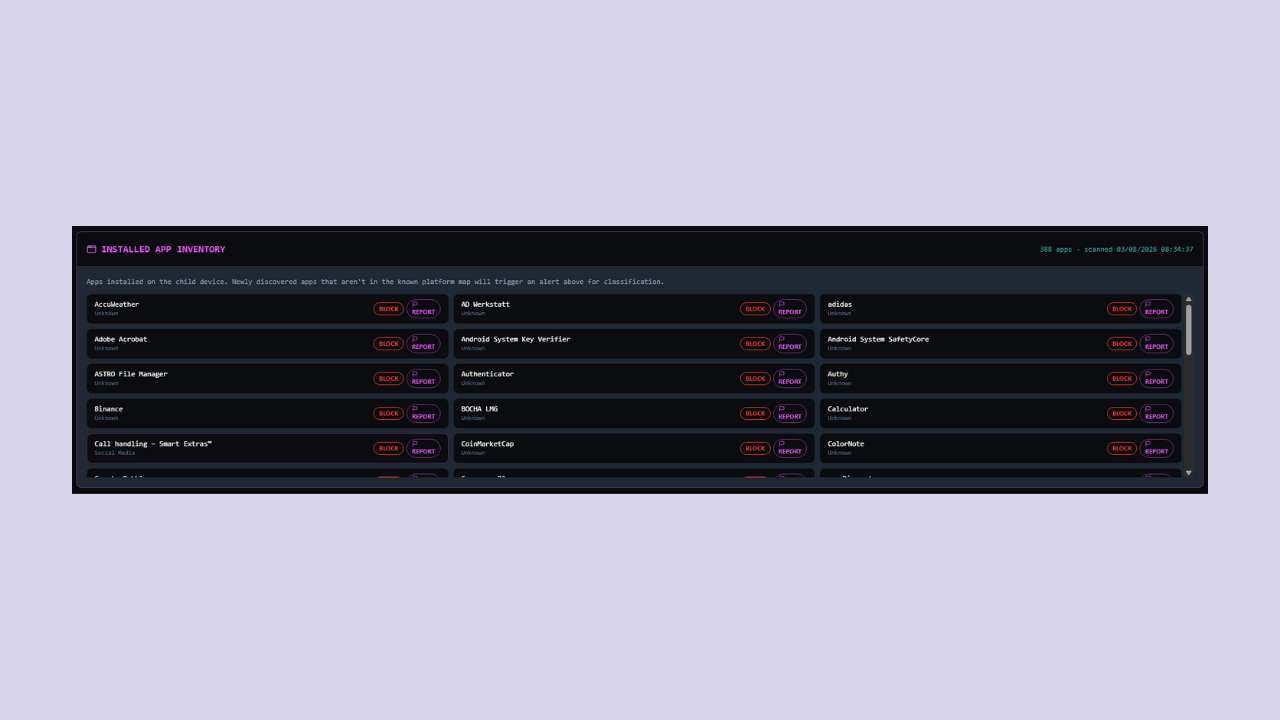
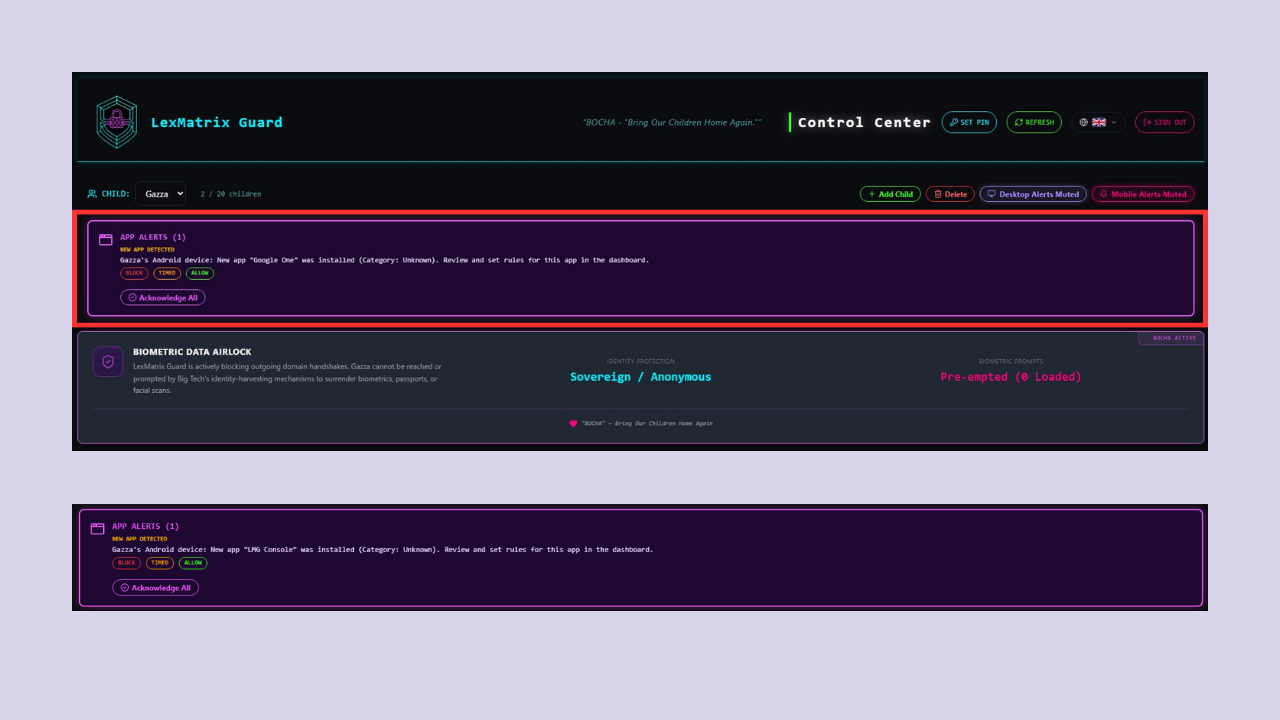
When the device scan detects a new app that isn't in the known platform map, LexMatrix Guard immediately sends you a NEW_APP_DETECTED alert. The alert appears as a banner at the top of the dashboard and includes:
You must enter your Security PIN to classify the app. Once classified, the enforcement app on the child's device receives the update in real time.
NEW_APP_DETECTED
dashboard alerts.
On iOS devices, Apple's strict privacy sandbox prohibits third-party apps from scanning the
device filesystem or detecting background App Store downloads. Consequently, iOS apps appear in the Installed
App Inventory as they are verified and linked via the parent setup shield. To stop children from downloading
unapproved apps, games, or VPNs on iOS, parents configure Apple's native "Installing Apps: Don't Allow"
Screen Time restriction (detailed in Section 25.5).
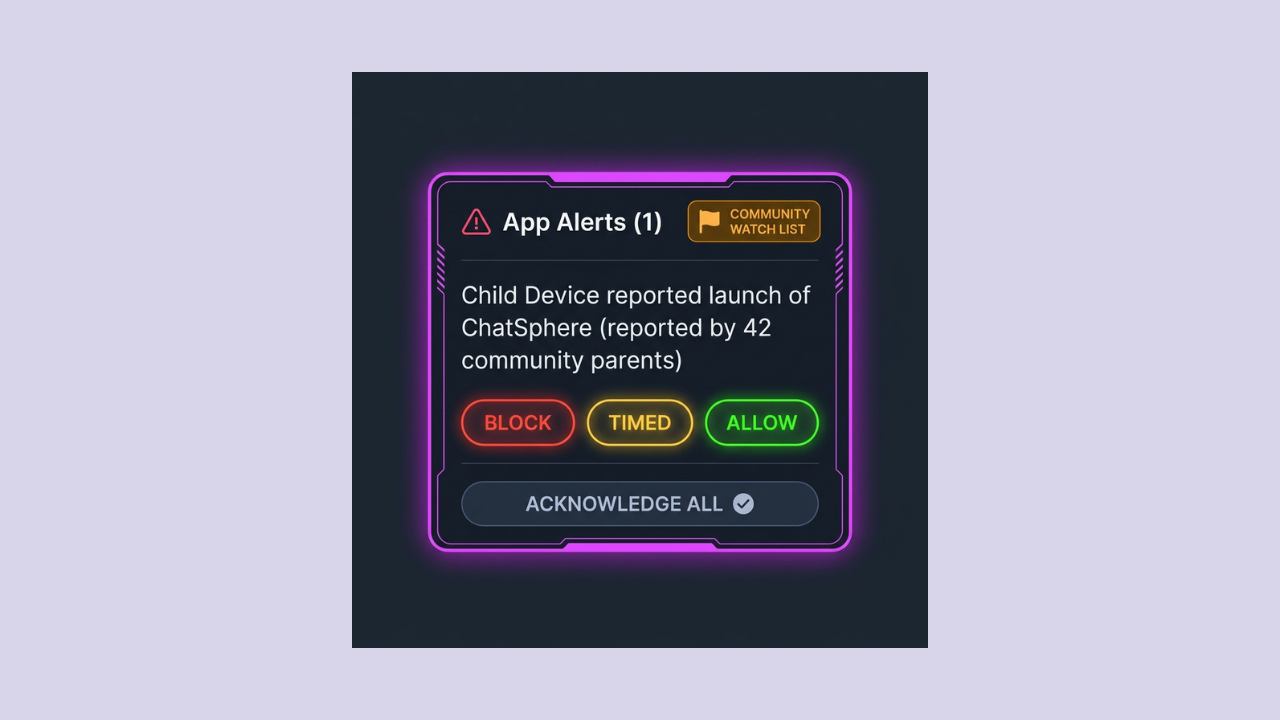
The Community-Sourced Blocklist lets parents crowdsource threat discovery. When a parent discovers a suspicious app that isn't in the 72-platform list or a restricted category, they can report it to the community. Once enough parents in the same region report the same app, it's automatically promoted to a watch list and all other parents in that region receive an alert.
The report is sent to the reportCommunityApp Cloud Function, which records it in the
community_blocklist Firestore collection, scoped to your region.
onCommunityAppPromoted Cloud Function triggers and scans all children's devices in that
region for the reported app.When an app is promoted to the watch list, the alert on your dashboard shows:
LexMatrix Guard uses accessibility event pattern analysis on Android to detect when an unclassified app is behaving like a social media platform. Even if an app isn't in the 72-platform list or a restricted category, the behavioral classifier can flag it based on its UI patterns.
The BehavioralClassifier on Android monitors accessibility events (window state changes, content
changes,
view clicks) and looks for three behavioral patterns:
When a behavioral pattern is detected, a BEHAVIORAL_FLAG alert appears on the dashboard with:
Alerts use a 30-minute cooldown to prevent spam. If you tap BLOCK App, the app is added to the
behavioralFlags list and will be blocked on the child's device in real time.
Many gaming platforms (Roblox, Fortnite, Minecraft, Rec Room, VRChat) have in-game chat systems that children
use
for unmoderated communication. LexMatrix Guard's GamingChatDetector on Android analyzes the
accessibility
node tree to detect chat UI patterns within these gaming apps.
The detector looks for gaming-specific chat UI elements:
When chat UI is detected in a gaming app, a GAMING_CHAT_DETECTED alert is created with a 5-minute cooldown. The alert banner shows:
If the gaming app is already in the blocked set, the enforcement service shows a lock screen overlay when chat is detected.
WhatsApp and Telegram are exempt from legal bans so children can communicate with family. However, their Communities, Channels, and Public Groups features are used by children to join unmoderated mass-communication spaces. LexMatrix Guard can block access to these specific features within the apps, without blocking the apps entirely.
| Feature | App | What It Does |
|---|---|---|
| WhatsApp Communities | Blocks access to community group feeds and discovery | |
| WhatsApp Channels | Blocks access to broadcast channels and following | |
| Telegram Channels | Telegram | Blocks access to broadcast channels and join/view |
| Telegram Groups | Telegram | Blocks access to public group join and view |
The MessengerFeatureBlocker analyzes the accessibility node tree for known UI patterns (tab labels,
screen titles, button texts) associated with restricted features. When a restricted feature is detected:
On iOS, the Screen Time API does not support feature-level blocking within apps. When any messenger feature block is active, LexMatrix Guard blocks the entire app (WhatsApp or Telegram) as a fallback.
The alert banner on the dashboard shows (in blue):
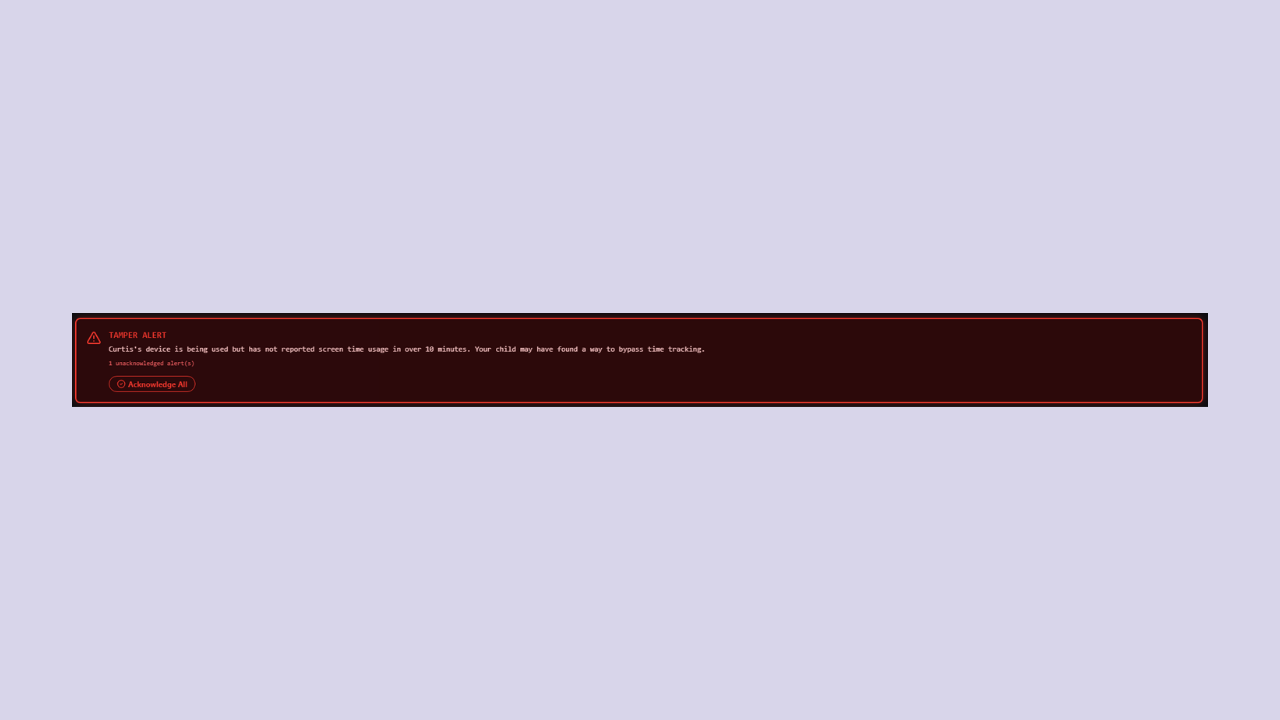
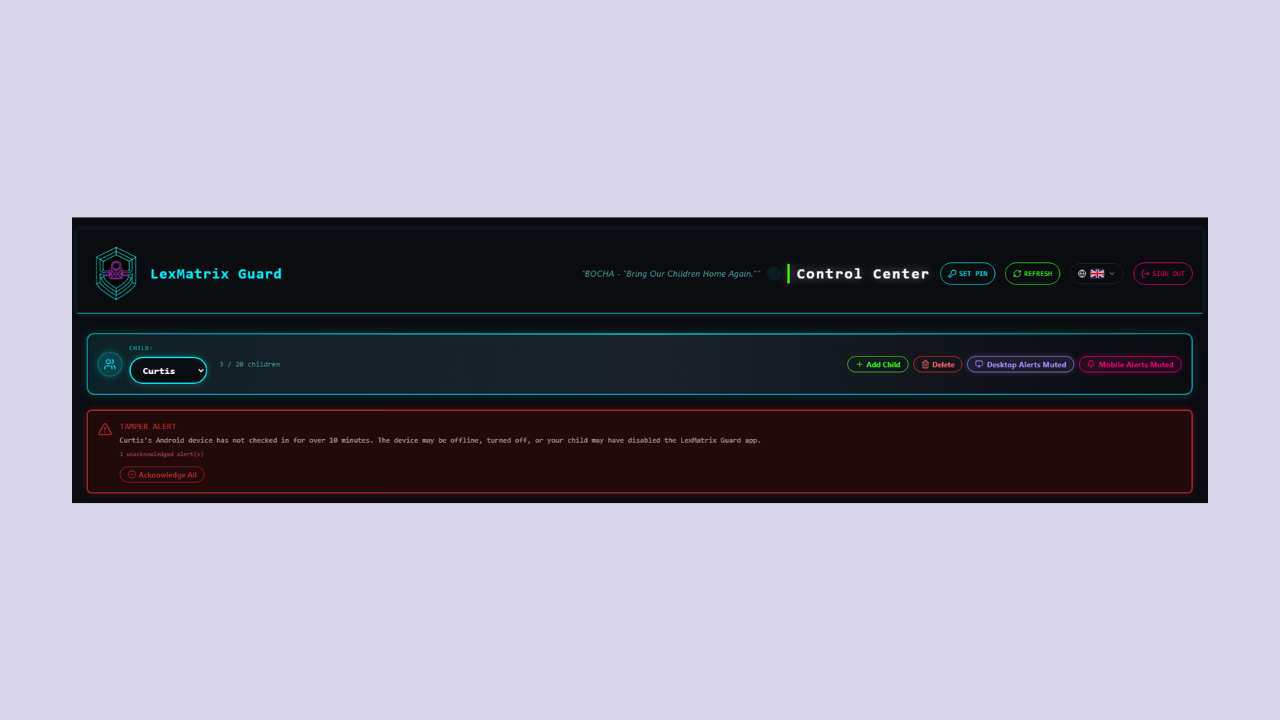
When your child disables the enforcement service on their device, a red, pulsing TAMPER ALERT banner appears at the top of the dashboard. It shows:
If the child's device hasn't sent a heartbeat in over 10 minutes (but no tamper alert has been triggered), an amber warning appears: "No heartbeat from child device in over 10 minutes."
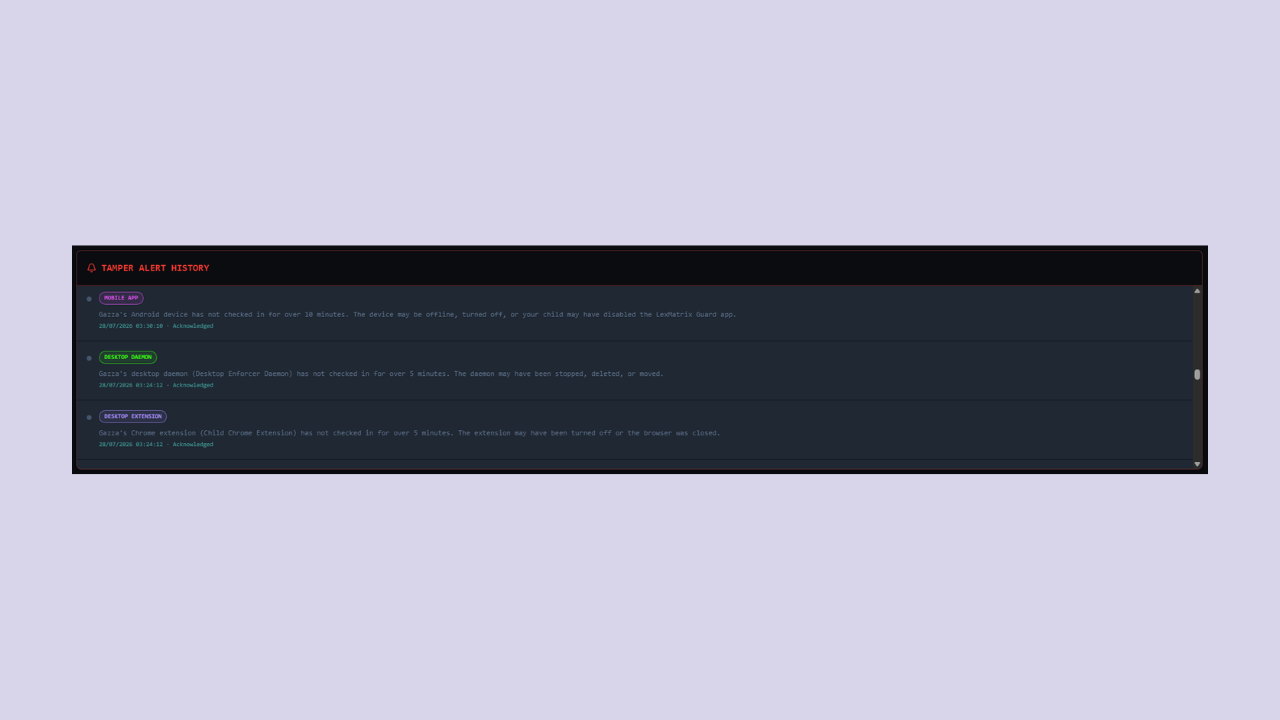
At the bottom of the dashboard, the TAMPER ALERT HISTORY section shows a complete log of all alerts. The list shows the 5 most recent alerts by default. If there are more than 5, you can scroll vertically within the list to see older entries.
Each alert entry shows:
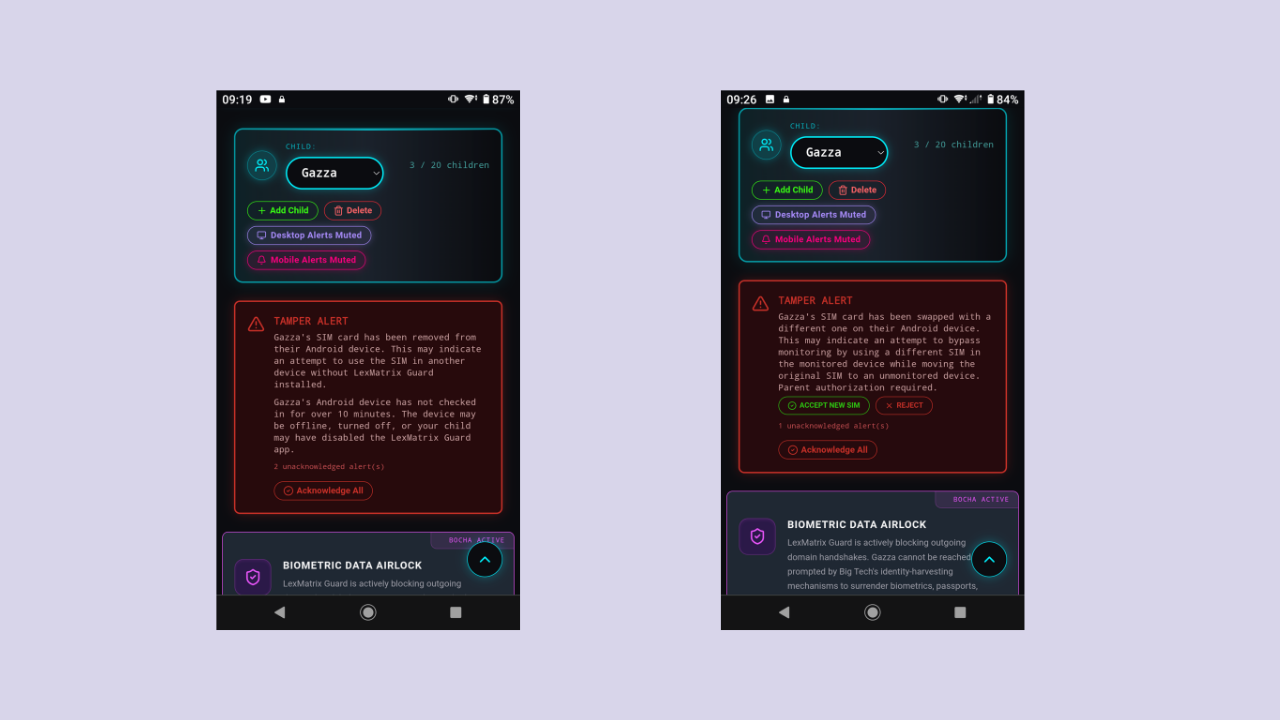
LexMatrix Guard monitors your child's SIM card state in real time. If the SIM card is removed, swapped for a different one, or the child switches to an entirely different device, an instant alert is sent to your parent dashboard. This prevents children from bypassing enforcement by moving their account to a new, unmonitored device.
The mobile enforcement app records a cryptographic hash of the child's SIM card at sign-in time and stores it as the authorized SIM hash on the server. On every heartbeat (every 30 seconds), the app checks the current SIM state and compares it to the authorized hash:
When any of these events is detected, a tamper alert is written to the child's alert history and a push notification is sent to the parent's devices immediately.
When a SIM_CHANGED alert appears on the dashboard, two PIN-gated buttons are shown:
Both actions require your 6-digit Security PIN, which is verified server-side by the
authorizeSimChange Cloud Function.
SIM-related alerts appear in the Tamper Alert History feed at the bottom of the dashboard, alongside other tamper alerts. Each SIM alert shows:
SIM_REMOVED, SIM_CHANGED, or DEVICE_SWITCH_DETECTED)
The Desktop Enforcer Daemon is a lightweight background program that runs on your child's Windows, macOS, or Linux computer and terminates forbidden applications at the operating system level — even if they are launched outside the browser. This works alongside the browser extension to provide complete desktop coverage.
The daemon is designed for non-technical parents — no manual configuration required. To ensure the binary is
paired with your household's cryptographic keys, it is downloaded exclusively as a pre-configured
LexMatrix-Daemon.zip bundle from the PIN-gated Parent Dashboard.
/dashboard) in a browser on your child's computer
(ensure Device Setup Mode is set to Mobile + Desktop).LexMatrix-Daemon.zip — containing both the native daemon executable (e.g.,
lexmatrix_guard_windows-amd64.exe) and your account's signed daemon_config.json
configuration file.LexMatrix-Daemon.zip into a dedicated folder on the
child's computer (for example, a LexMatrix Daemon folder on the Desktop) so the binary and
daemon_config.json stay together in the same folder..exe on Windows; if Chrome shows an "Uncommonly
downloaded file" prompt or Windows SmartScreen appears, choose Keep anyway / More
info → Run anyway). On macOS or Linux, run chmod +x on the extracted binary and launch
it once from Terminal.daemon_config.json cannot authenticate with your household account, sync your live platform
rules, or report heartbeats and tamper alerts. The PIN-gated DOWNLOAD DAEMON button in the
Parent Dashboard automatically detects Windows (64-bit/ARM64/32-bit), macOS (Apple Silicon/Intel), or Linux
(64-bit/ARM64) and packages the matching binary with a freshly registered daemon_config.json
protecting every profile on your account. If you add a new profile later, click "SYNC NEW
PROFILES" on the dashboard to download daemon_update.json into the same folder.
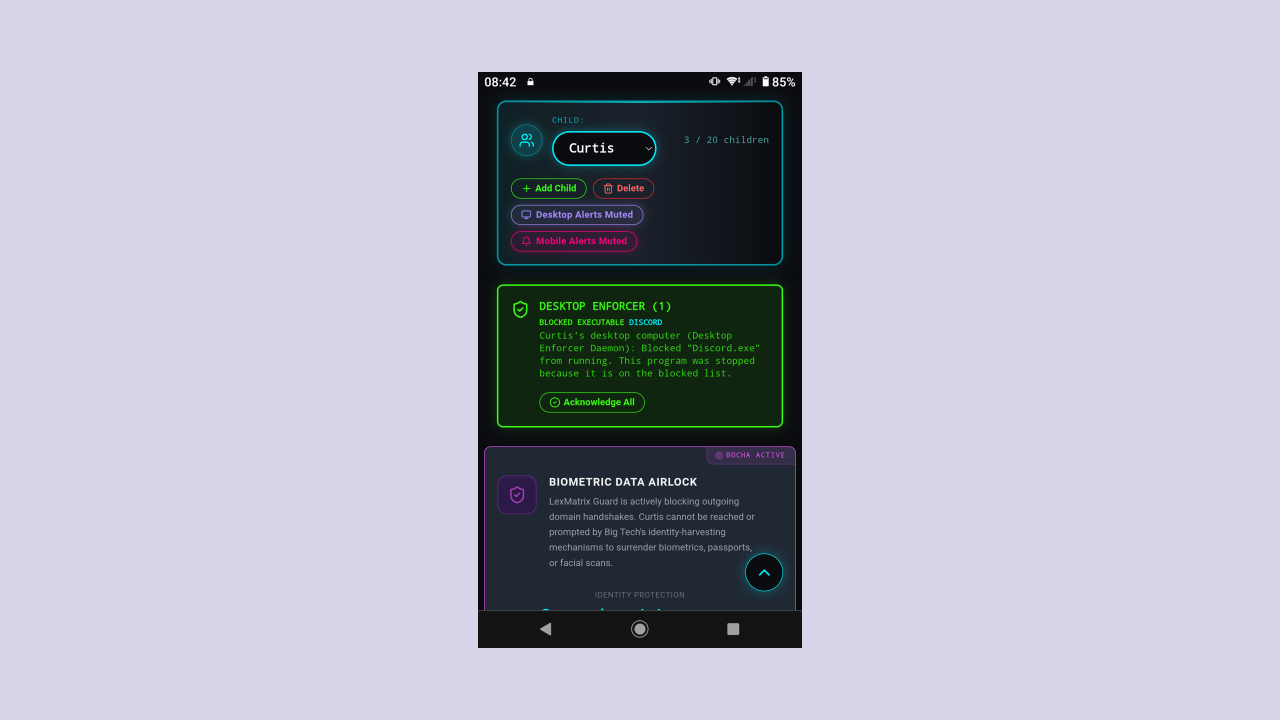
When the daemon terminates a forbidden executable, a green DESKTOP ENFORCER banner appears on the parent dashboard. It shows:
On Windows, the daemon installs three independent layers of persistence to prevent your child from disabling it:
| Layer | What It Does |
|---|---|
| Scheduled Task Watchdog | Registers LexMatrixGuardWatchdog to run on logon and re-launch the daemon every 3 minutes
if the process is terminated via Task Manager. |
| Registry Run Key | Auto-launches the daemon immediately when the child signs into their Windows user account. |
Binary ACL Hardening (icacls) |
Restricts the daemon executable permissions to Read & Execute (RX), preventing
standard-user file overwrite or in-place binary modification. |
On macOS, the daemon installs a LaunchAgent plist at
~/Library/LaunchAgents/com.lexmatrix.guard.plist with KeepAlive set to
true. This ensures the daemon auto-starts when the child logs in and is automatically
restarted if killed.
On Linux, a systemd user service is installed at
~/.config/systemd/user/lexmatrix-guard.service with Restart=always,
providing the same auto-start and restart-on-crash behaviour.
daemon_config.json file is created with
0600 permissions (owner read/write only) to prevent other users on the system from
reading the daemon's Ed25519 key material (or legacy HMAC secret).
The daemon doesn't just match by binary name — it also checks alias names for each target platform. This catches renamed binaries, portable variants, and beta/canary builds. For example:
DiscordPTB.exe, DiscordCanary.exetdesktop.exe, TelegramDesktop.exetor-browser.exe, torbrowser.exe
On Windows, the daemon also detects WSL (Windows Subsystem for Linux) processes.
If wsl.exe is running, the daemon checks Linux processes inside the WSL container for
blocked platform binaries.
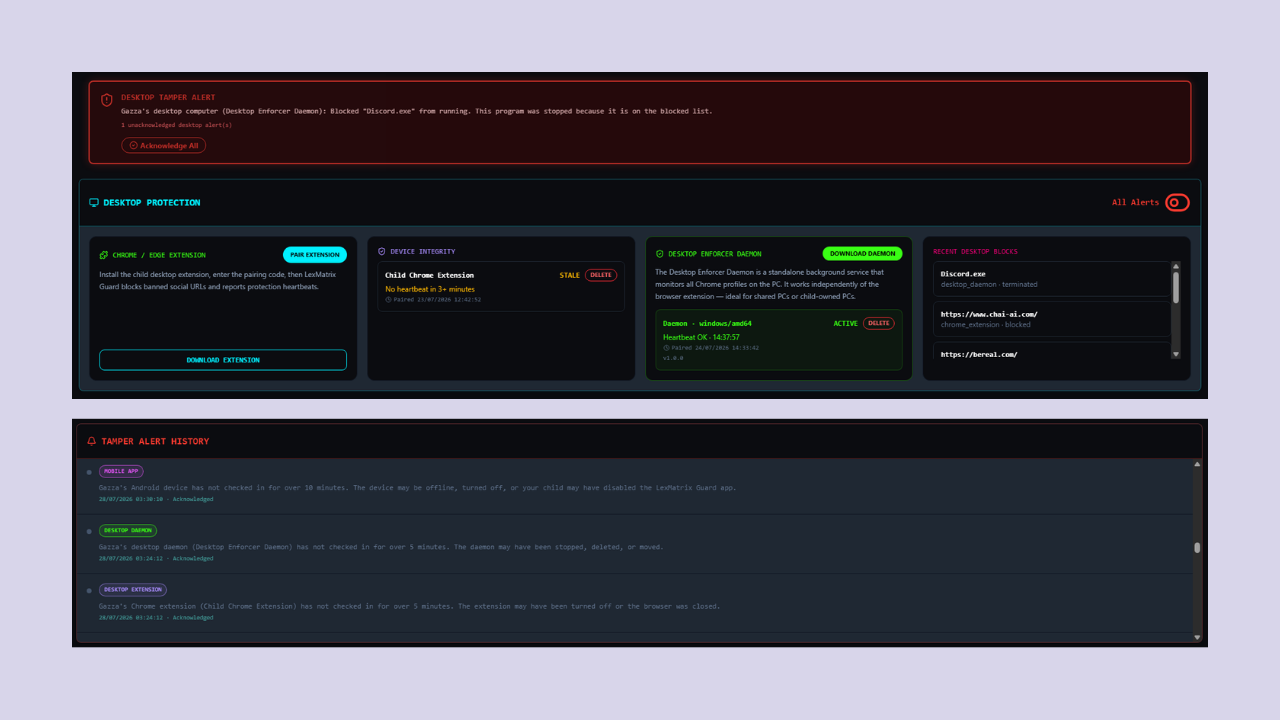
The daemon's heartbeat appears in the Desktop Protection section of the dashboard, alongside the browser extension's heartbeat. The device card shows:
daemon_config.json file is missing, the daemon
still runs and terminates forbidden executables — it just can't send alerts or heartbeats to the cloud.
This ensures enforcement continues even if the config file is accidentally deleted.
Daemon block events also appear in the Tamper Alert History feed at the bottom of the dashboard, tagged with a green DESKTOP DAEMON badge so you can distinguish them from browser extension and mobile app alerts.
Your 6-digit Security PIN protects all sensitive actions on the dashboard and is required to sign out of the enforcement app on your child's device. You can change your PIN at any time.
To protect against gradual PIN discovery (such as tech-savvy children observing finger movements or guessing combinations over time), LexMatrix Guard actively evaluates PIN age. When your PIN reaches 90 days of age, an amber security reminder banner appears automatically on your dashboard recommending a reset. You can click "RESET PIN NOW" to update your PIN immediately, or click "Remind Me in 7 Days" to snooze the reminder.
When an unlock attempt occurs on a child's mobile or desktop device, attempts are tracked in an isolated rate limiter to prevent denial-of-service against the parent's account. If 5 incorrect attempts occur on the child's device:
⚠️ Security Alert) is sent to all registered
parent devices.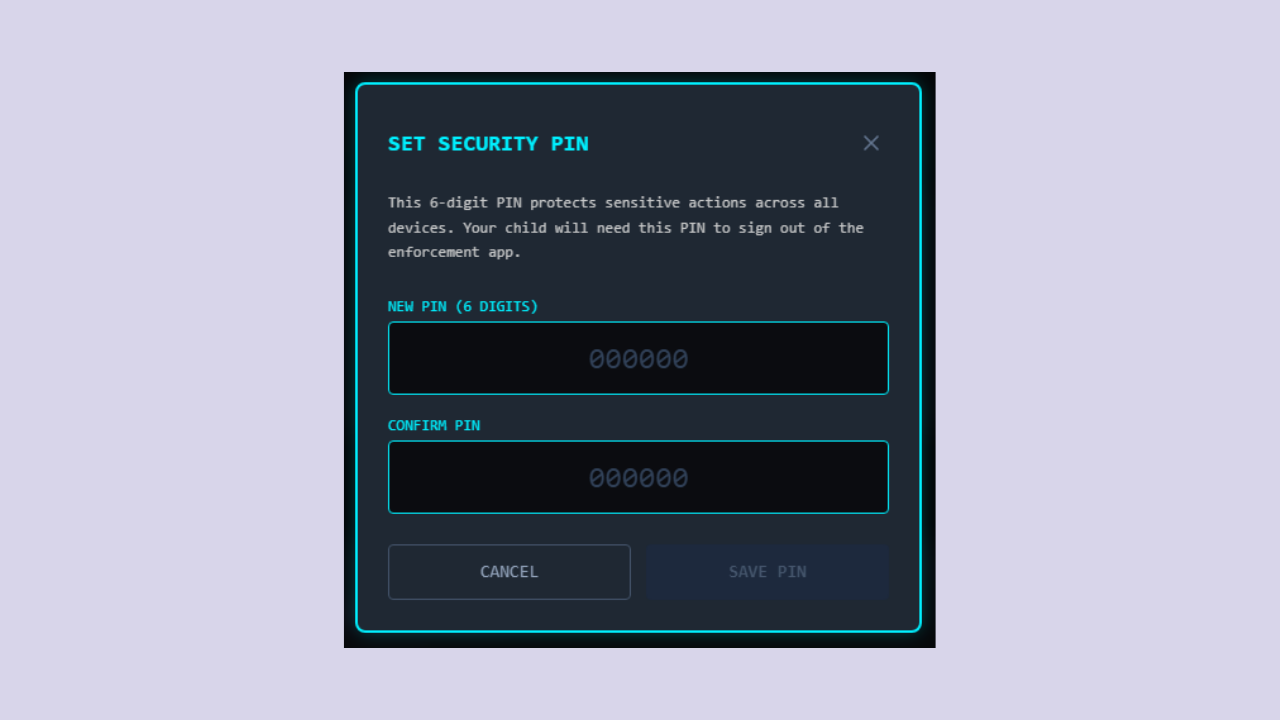
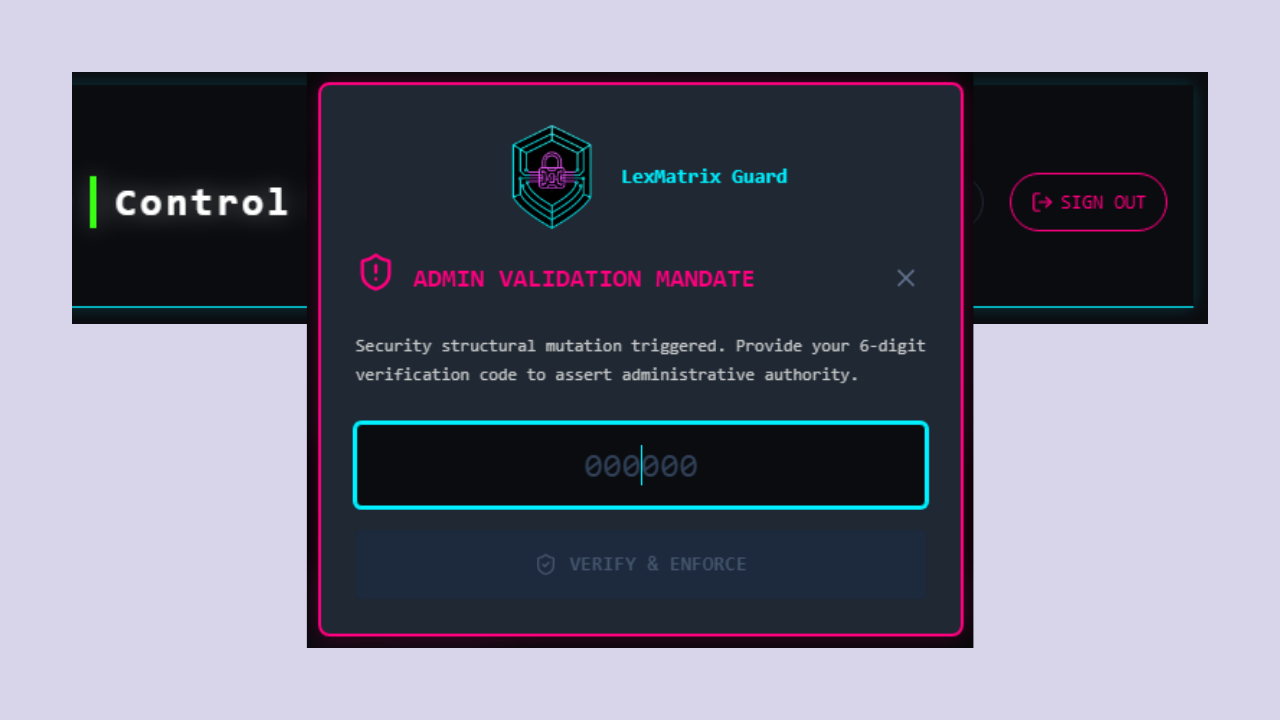
Signing out of the parent dashboard requires your Security PIN for security.
If you enter the wrong PIN, an "Incorrect security PIN" error appears and you can try again.
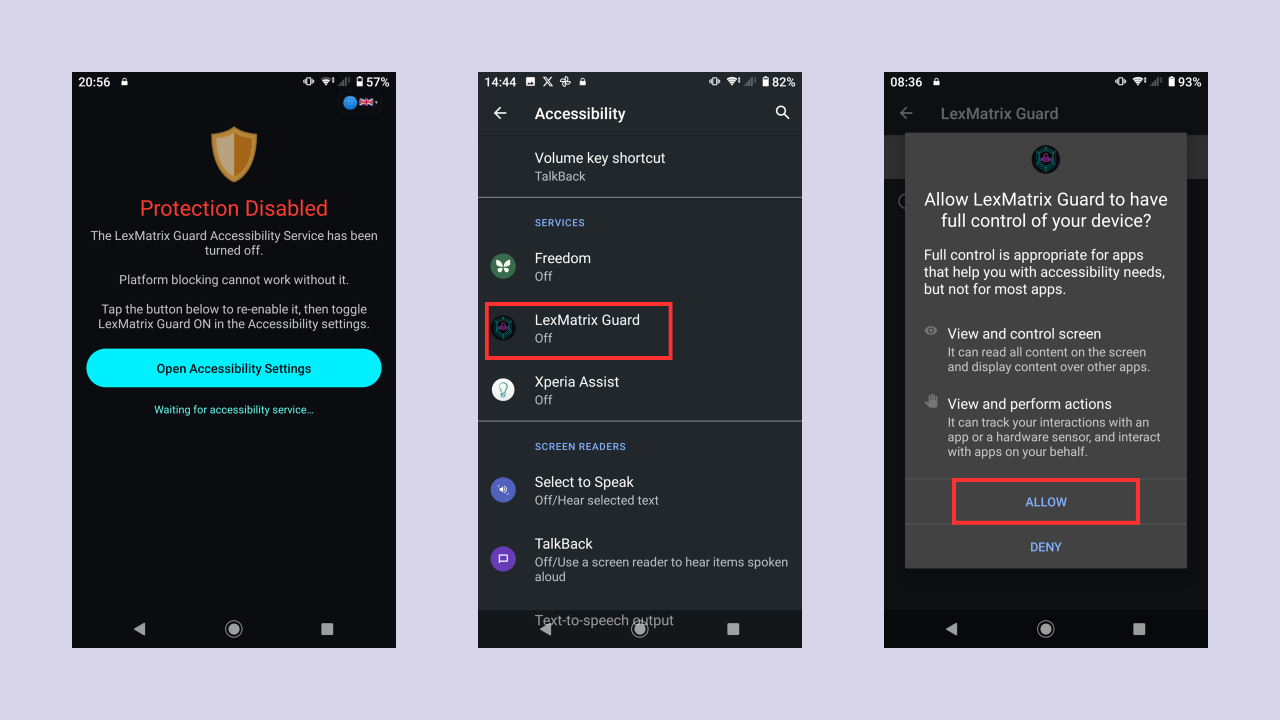
The Android enforcement app runs on your child's Android phone (Android 8.0 / API 26 or later). It uses an Accessibility Service to detect and block app launches, and Device Admin to prevent uninstallation.
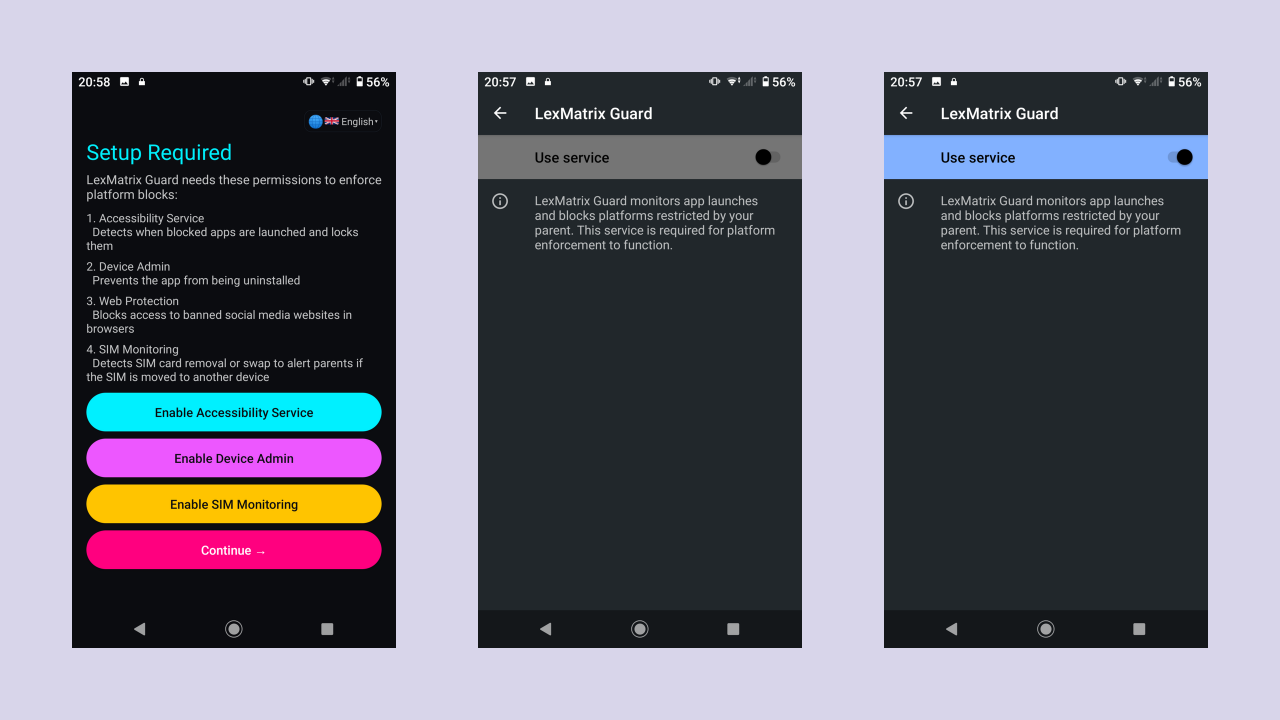
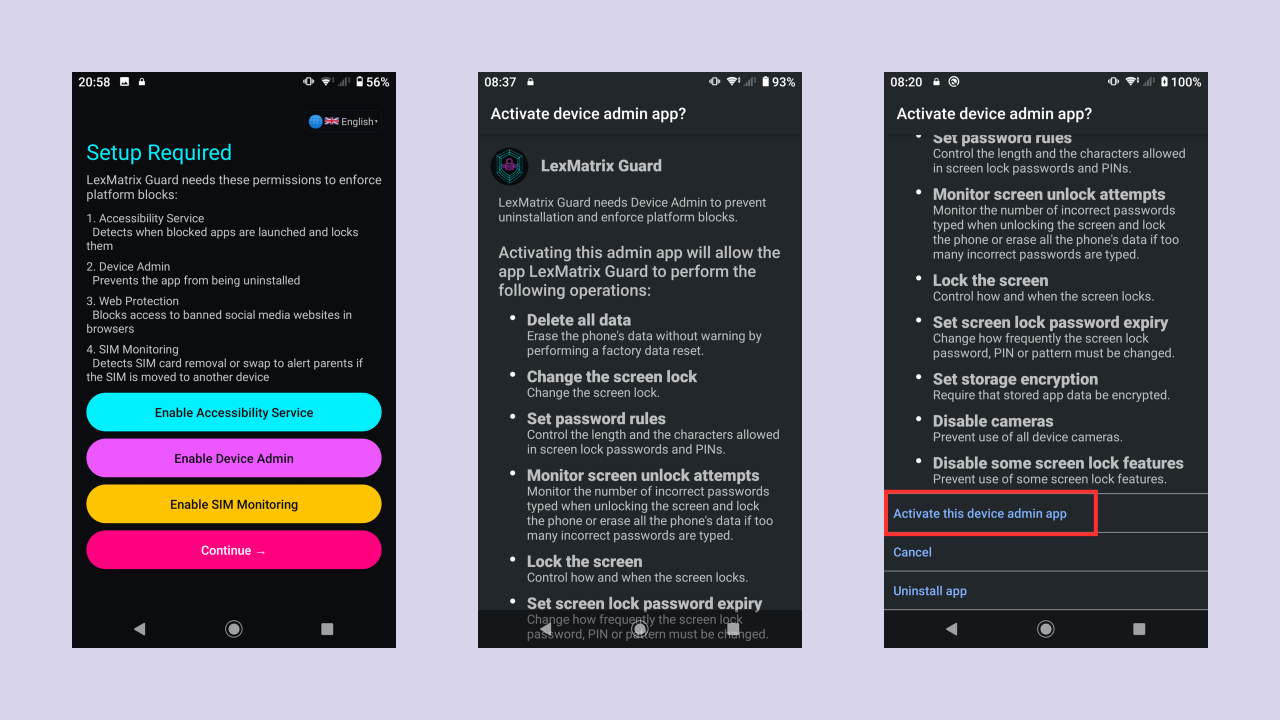
Some Android manufacturers (Xiaomi, Oppo, Vivo, Samsung) aggressively kill background services to save battery. To ensure reliable enforcement:
The iOS enforcement app runs natively on your child's iPhone or iPad (iOS 16.0 or later).
It leverages Apple's official Screen Time & Family Controls APIs (including
ManagedSettings and DeviceActivity) to enforce app shielding, hourly matrix time-outs,
and web domain filtering directly at the operating system and WebKit engine levels.
Before installing the app on your child's iPhone or iPad, ensure the following device prerequisites are met:
iOS requires parental authorization to allow LexMatrix Guard to manage application shields and web content filters.
ManagedSettingsStore to shield restricted native apps and filter WebKit browser traffic, and with
DeviceActivity to track hourly platform usage without compromising your child's private personal
data.
Apple's Screen Time architecture requires an authentic, opaque ApplicationToken to halt a running
foreground app (like YouTube or Twitch) the exact second its hourly time matrix expires. Because iOS forbids
fabricating tokens from bundle IDs, LexMatrix Guard uses Apple's official FamilyActivityPicker to
link priority platforms in a clean, one-time flow.
Once selected, the encrypted application token is stored in the app's secure App Group container and persists across device reboots and app updates. The setup banner automatically dismisses permanently, and the child's dashboard remains completely clean and read-only.

Tech-savvy children frequently attempt to bypass parental controls by deleting apps, downloading third-party VPN apps (such as FastestVPN, Opera VPN, or Cloudflare 1.1.1.1), or modifying device configuration profiles. To ensure airtight enforcement, configure these built-in Apple Screen Time settings on the child's iPhone:

Once installed and hardened, the iOS enforcement engine runs seamlessly in the background without requiring the app to remain open:
DeviceActivityMonitor)
runs continuously inside iOS system daemons, ensuring hourly budget expirations trigger on schedule even when
the phone is locked or low on battery.SIM_REMOVED alert is recorded and pushed to your dashboard.Once paired and synchronized with your parental policy, LexMatrix Guard continuously enforces application shielding and web domain restrictions directly at the core iOS operating system layer:
ManagedSettings framework. App icons appear darkened with an official Screen Time hourglass badge, preventing launch.
tiktok.com or instagram.com), the WebKit filter stops the request instantly at the browser layer and displays Apple's native "Website Not Allowed" or "Restricted" screen. Even if a third-party VPN is running, WebKit blocks the traffic before it enters the network stack.
When a child attempts to open any platform designated as ALWAYS BLOCKED (such as TikTok, Snapchat, Instagram, or Facebook), LexMatrix Guard's custom ManagedSettingsUI shield extension activates instantly:
After installing the enforcement app on your child's device, you need to sign in using the child's credentials that were generated when you created their profile (see Section 4.2).
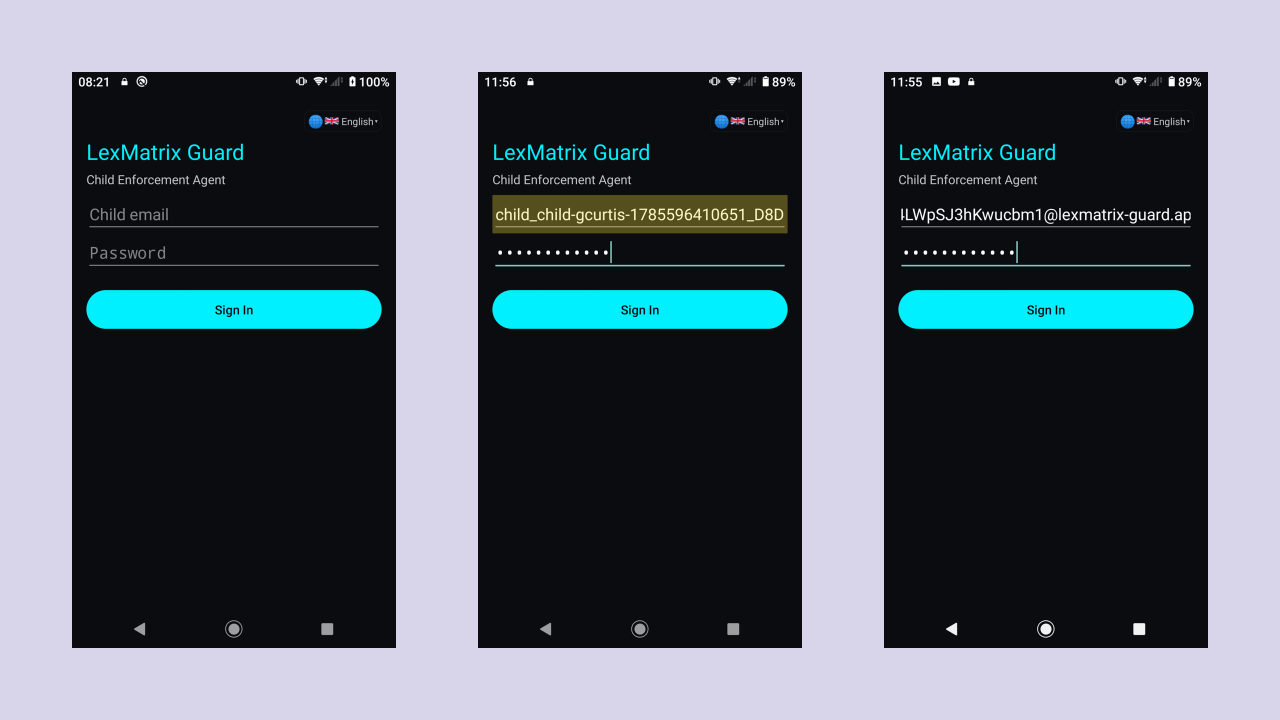
Once signed in, the enforcement app runs silently in the background. Here's what happens:
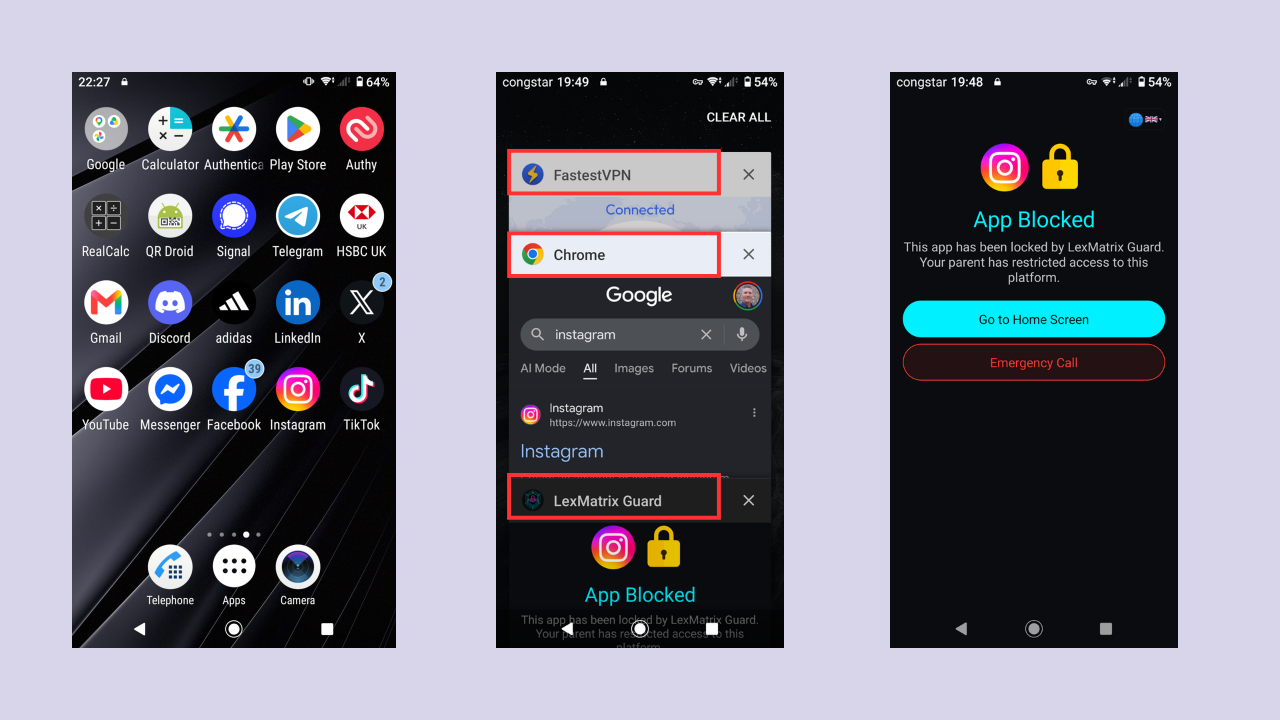
For TIMED apps (Twitch, YouTube), the child can use them freely until the time budget runs out. The mobile app reports usage to the server every 30 seconds. When the budget is exhausted, the app is automatically locked.
Additionally, the Parent-Controlled Platforms (Discord, Telegram, and WhatsApp) can be set by the parent to a TIMED state on the dashboard. When set to TIMED, they are subject to this same hourly Time Wallet budget and will be automatically locked as soon as the wallet exhausts.
ACCESSIBILITY_DISABLED tamper
alert on the Parent Dashboard.SIM_REMOVED tamper notification to the parent.APP_CLOSED status rather than a false alarm. System
shields, hourly matrix time-outs, and curfew restrictions remain strictly enforced by Apple's background
daemons.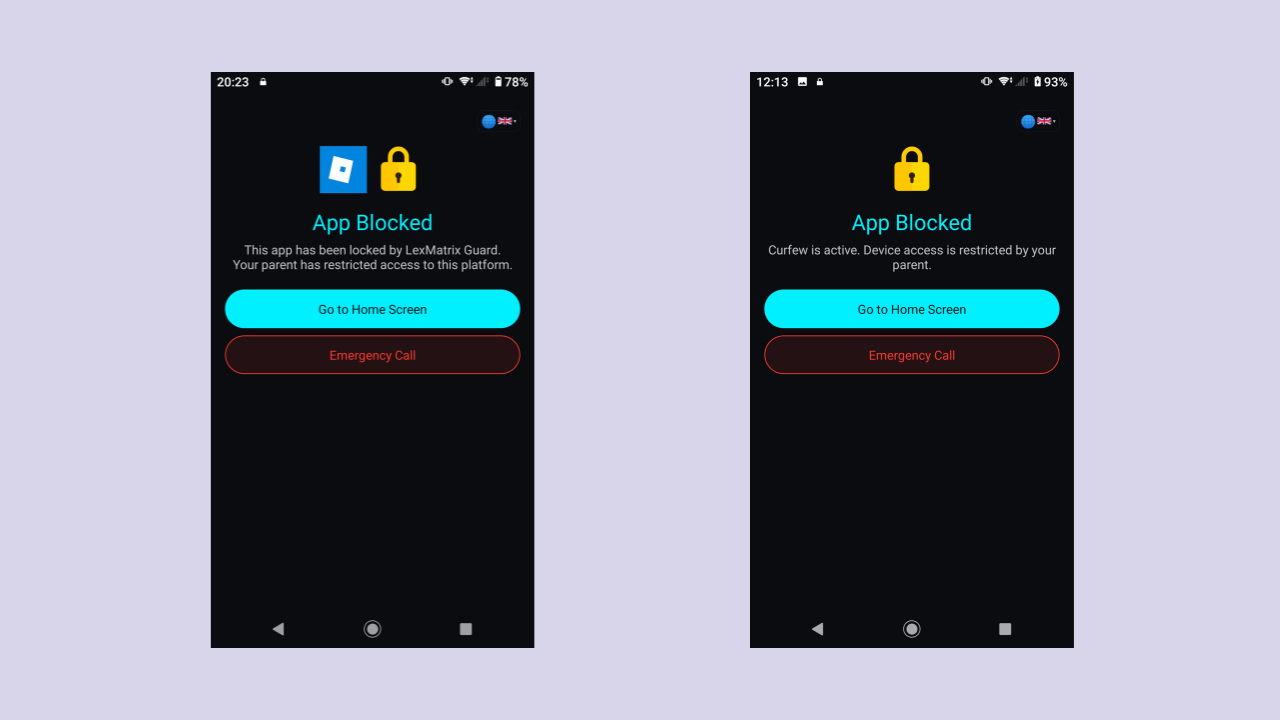
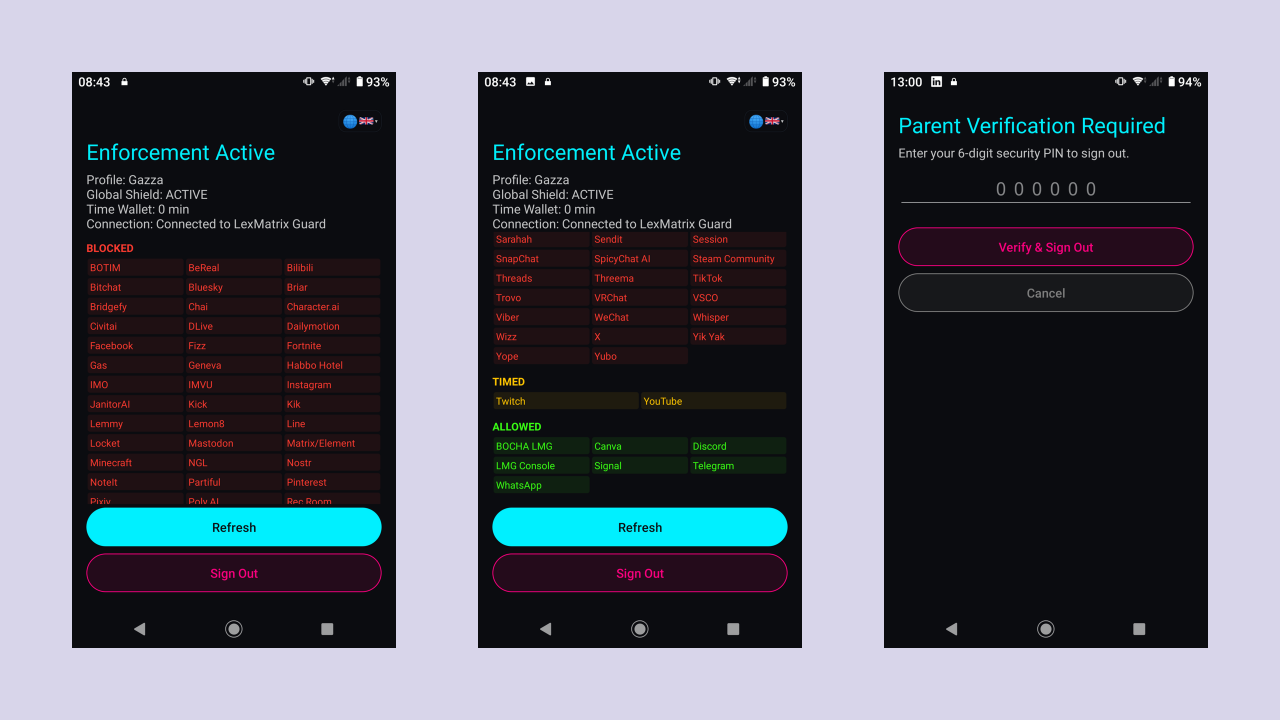
Signing out from the enforcement app on the child's device requires the parent's Security PIN. This prevents children from disabling enforcement by signing themselves out.
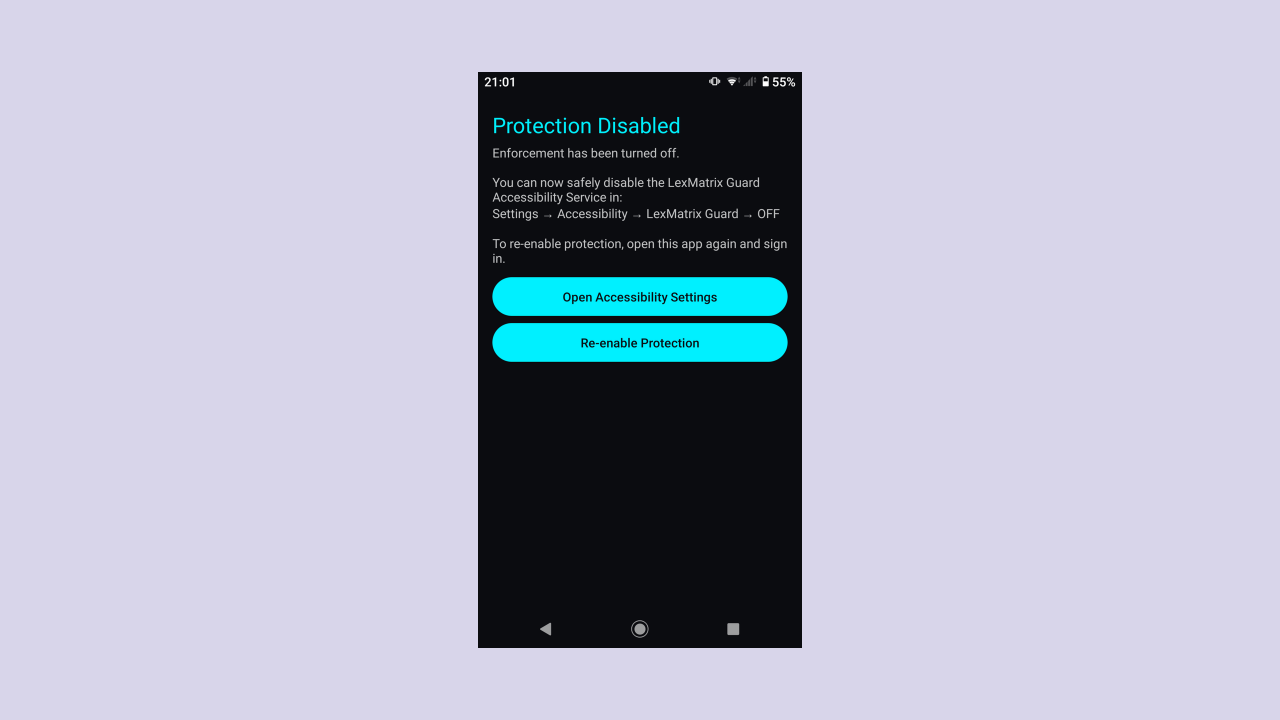
A "Protection Disabled" screen appears with instructions to disable Accessibility in Settings. The parent can re-enable protection at any time by tapping "Re-enable Protection".
Upon successful Security PIN validation on iOS, the app immediately releases all active
ManagedSettings shields, unregisters background DeviceActivity monitoring schedules,
and securely purges session credentials from the shared Keychain and App Group storage. The iPhone returns to an
unshielded state for device servicing or handoff.
The child's device hasn't sent a heartbeat yet. Check that:
The child's device hasn't reported in over 10 minutes. The device may be:
The app's AccessibilityGuardService should detect this and lock the device. You'll see a TAMPER_DETECTED alert on the dashboard. On the child's device, a full-screen lock prevents use until the Accessibility Service is re-enabled. Go to Settings → Accessibility → LexMatrix Guard → ON to restore enforcement.
Contact LexMatrix Guard support. For security reasons, PIN reset is not available through the app interface.
No. Time usage is tracked server-side. The mobile app reports usage every 30 seconds, and clearing app data does not affect the server's record of accumulated usage.
The dashboard will not update in real time, but enforcement continues on the child's device — it operates independently based on the last received policy. When your internet returns, refresh the dashboard to see the latest status.
The enforcement app continues to enforce the last received policy offline. The dashboard will show HEARTBEAT_STALE after 10 minutes. When the device reconnects, it resumes sending heartbeats and the dashboard updates automatically.
Yes. Sign in to the PWA on any browser/device with your parent email and password. The dashboard syncs in real time.
Check for a red error banner below the child selector — it will show any policy save errors. Ensure you have a stable internet connection and try the REFRESH button. If the buttons are greyed out, the time budget has already reached the 360-minute (6 hour) maximum.
If the daemon is running but the dashboard doesn't show a heartbeat:
LexMatrix-Daemon.zip (the daemon binary and
daemon_config.json) were extracted into the exact same folderLexMatrix-Daemon.zip was downloaded from your Parent Dashboard under Desktop
Protection → DOWNLOAD DAEMON (not run as an unconfigured standalone binary)daemon_update.json into the daemon folder
On Windows, the LexMatrixGuardWatchdog Scheduled Task automatically re-launches the daemon within 3
minutes, and the Registry Run key restarts it on login. If all persistence layers are disrupted, you'll receive
a DESKTOP_HEARTBEAT_STALE tamper alert within 3 minutes.
While running, Windows locks the executable and hardens its ACLs with icacls. If the child stops
the process and deletes the folder, heartbeats stop — triggering a DESKTOP_HEARTBEAT_STALE
alert on your dashboard within 3 minutes so you know immediately that the daemon was tampered with. Re-download
LexMatrix-Daemon.zip from the Desktop Protection section of your Parent Dashboard
(/dashboard).
Your child has installed an app from a source other than the official Play Store (Android) or App Store (iOS). This is called "sideloading" and can be a security risk. The alert shows which app was sideloaded and its installer source. You can block the app directly from the alert banner on the dashboard.
Your child's device is online and sending heartbeats, but the timed usage reporter has stopped reporting for more than 10 minutes while the child still has remaining timed budget. This may indicate the child has found a way to interfere with the usage tracking service. Check the child's device to ensure the enforcement app is running properly and hasn't been tampered with.
Once compiled on a macOS environment using Xcode, the iOS Enforcement App can be deployed via TestFlight or Apple Developer provisioning profiles. During setup, the child's device will prompt to enable the Family Controls API. This configuration requires the parent's Apple ID password to confirm and prevent the child from deleting or disabling the app.
UAE Cabinet Resolution No. 106 imposes age restrictions on social media platforms for children under 15 years old. When you select the UAE region during parent sign-up or profile creation, the legal compliance shield automatically configures the platform access defaults to align with this under-15 legal ban.
Yes. Each child profile has its own settings. The platform automatically tracks and enforces the correct local compliance rules (Australia, Brazil, UAE, or UK) based on the region selected when you create or edit the child's profile on the dashboard.
This section summarises the integrations and security hardening released in recent updates. It covers the new Indonesia and Malaysia compliance regions, PWA dashboard upgrades, and client-hardening features that parents should know about.
LexMatrix Guard now supports two additional compliance regions, bringing the total to six:
During parent sign-up and when creating or editing a child profile, select the correct compliance region so the correct legal floor and regional defaults are loaded. Region-specific bans (for example YouTube and Twitch locked in the UAE, Brazil, Indonesia and Malaysia) are enforced automatically.
The parent dashboard has received a number of new controls and status indicators:
HEARTBEAT_OK, APP_CLOSED,
HEARTBEAT_STALE, TAMPER_DETECTED) and only displaying ROOTED or
JAILBROKEN warning badges if device compromise is detected.Following the LexMatrix Guard security audit, several parent-facing and client-facing protections were added or strengthened:
notificationPrivacy to
full, minimal or none on your user document to control how much alert detail
appears on lock-screen notifications.getSensitiveAlertDetail
callable.strong and a tags) and 18 XSS tests reject scripts, event handlers
and unsafe URLs.unsafe-inline has been removed from style-src
across all static website routes and the dashboard route. All inline style attributes were replaced with CSS
classes.grantTimedBudget and
resetTimedUsage Cloud Functions. Direct Firestore writes to timeRemaining are
blocked by security rules.timed_usage/current/devices/. The server sums across all devices, preventing multiple
devices from double-draining a single time budget.CryptoKey in IndexedDB. Raw
secrets are no longer used for steady-state requests and legacy HMAC fallback has been removed. The migration
includes retry logic with exponential backoff and fail-closed behaviour — if migration fails, local storage is
cleared so the raw device secret does not persist.active_blocks and curfew settings in the
browser extension are now encrypted at rest using AES-256-GCM. The encryption key is generated and stored in
IndexedDB (lexmatrix_keys / cache_key object store), so even if local storage is
accessed, cached policy data is not readable in plaintext.host_permissions now uses a wildcard
(https://*.cloudfunctions.net/*) to avoid exposing the Firebase project ID and region in the
published extension manifest.daemon_config.json for
the desktop daemon./daemon/v1.0.0/. Firebase Hosting caches these with immutable headers. The daemon checks
/daemon/manifest.json for updates, enforces anti-downgrade and honours emergency revocation.icacls ACLs, macOS
LaunchAgent plists and Linux systemd service files are set read-only (0444), and the scheduled-task watchdog
interval was reduced to 3 minutes for faster recovery.DESKTOP_INCOGNITO_ATTEMPT alert.
dnsFilteringMode of
monitoring-only, configured, enforced or degraded, with colour-coded
badges and localised descriptions on the dashboard.android.util.Log calls with a
debug-gated SafeLog wrapper, so sensitive data does not appear in logcat.SimStateReceiver and
BootReceiver now validate intent actions and verify the real running state of
AccessibilityGuardService rather than assuming it from a broadcast.SystemClock.elapsedRealtime() and
iOS uses ProcessInfo.systemUptime for budget calculations instead of wall-clock time. This
prevents children from extending timed access by changing the device clock. iOS also detects backward clock
jumps greater than 60 seconds and triggers a re-sync.serverUsedSeconds). This prevents clearing
app data or local storage from resetting the timed usage countdown.TimedUsageReporter now receives the
actual linkedChild ID at instantiation instead of hardcoding "primary", ensuring
usage is reported to the correct child profile.BOCHA ("Bring Our Children Home Again") is the dashboard indicator that LexMatrix Guard is acting as an on-device digital airlock. By blocking banned platform domain handshakes locally before any connection resolves, the system prevents Big Tech's age-verification prompts from requesting your child's passport scans, eID links or biometric facial sweeps. The card shows Identity Protection: Sovereign / Anonymous and Biometric Prompts: Pre-empted (0 Loaded) while the airlock is active.
To counter persistent brute-force and observation attempts by tech-savvy minors:
security/unlock_limits). Five failed
attempts lock the child flow for 15 minutes, log a CHILD_PIN_LOCKOUT alert, and immediately
dispatch a high-priority FCM push notification to all parent devices. The parent's master dashboard login PIN
remains completely isolated and immune to child-induced lockouts.getPinStatus Cloud Function calculates PIN
age without exposing cryptographic secrets. If a PIN is 90 days or older, the dashboard presents an amber
security recommendation card with a 1-click RESET PIN NOW shortcut and a 7-day snooze option.TIMED applications at the OS layer ensures that when the daily time wallet
reaches 00:00 or curfew begins, the entire browser app (including active incognito video streams)
freezes immediately.| Term | Meaning |
|---|---|
| PWA | Progressive Web App — a web app that installs like a native app on your phone's home screen |
| Enforcement App | The mobile app installed on the child's device that blocks apps and enforces policies |
| Global Shield | The master toggle for legally-banned platform enforcement |
| Kill Switch | Emergency toggle to disable non-banned platform blocking remotely |
| Security PIN | 6-digit code required for all sensitive actions (toggles, lockdown, sign-out) |
| Heartbeat | Periodic signal from the child's device confirming it's online and enforcement is active |
| Tamper Alert | Alert triggered when the child disables or interferes with the enforcement service |
| Time Allocation | The shared time budget for TIMED platforms (Twitch, YouTube) |
| LOCKED | Platform is completely blocked — the child cannot open it |
| TIMED | Platform is allowed but limited by the time budget |
| ALLOWED | Platform is freely accessible (e.g. exempt apps like WhatsApp) |
| Accessibility Service | Android system feature used to detect and block app launches |
| Family Controls | Apple's Screen Time API used on iOS to block apps at the OS level |
| Device Admin | Android feature that prevents the app from being uninstalled |
| Child Auth Account | Dedicated sign-in credentials for a child's device (cannot modify policies) |
| Active Blocks | Read-only data on the cloud that the mobile app reads to know which apps to block |
| Category Blocking | 6 restricted categories (Social Media, Live-Streaming, Gaming/Social, Anonymous Social, AI/Social, Video/Streaming) blocked by default to catch unknown apps by type |
| DNS Filtering | Category-aware DNS blocking at the network level. Intercepts DNS queries in the VPN tunnel (Android) or Network Extension (iOS) and blocks resolution of restricted domains, preventing circumvention via alternative DNS servers |
| NXDOMAIN | A DNS response code indicating the queried domain does not exist. Used by DNS filtering to block restricted domains |
| DoH/DoT | DNS-over-HTTPS / DNS-over-TLS — encrypted DNS protocols that can bypass traditional DNS filtering. LexMatrix Guard blocks 20 known DoH/DoT endpoints to prevent circumvention |
| App Inventory | A complete list of all non-system apps installed on the child's device, scanned every 30 minutes and displayed alphabetically on the dashboard |
| New-App Alert | Alert triggered when the device scan detects an app not in the known platform map, with one-tap BLOCK/TIMED/ALLOW buttons |
| Community Blocklist | A region-scoped, parent-sourced list of reported apps. When 3 parents report the same app, it's promoted to the watch list and alerts are sent to all parents in that region |
| Watch List | Status given to a community-reported app after 3 reports. Triggers alerts to all parents in the region whose children have the app installed |
| Behavioral Classification | Phase 4 feature that analyzes accessibility event patterns on Android to detect apps behaving like social media (social feed UI, messaging infrastructure, profile systems). Alerts the parent with a BEHAVIORAL_FLAG alert |
| Trending Social App | Phase 4 feature that polls the Apple App Store RSS feed daily for trending Social Networking apps across five regions (AU, UK, AE, US, GB). Alerts parents whose children have newly trending apps installed |
| Gaming Chat Detection | Phase 4 feature that detects in-game chat UI in Roblox, Fortnite, Minecraft, Rec Room, and VRChat via accessibility node tree analysis. Creates GAMING_CHAT_DETECTED alerts with 5-minute cooldown |
| Messenger Feature Blocking | Phase 4 feature that blocks access to WhatsApp Communities/Channels and Telegram Channels/Groups within the apps. On Android, presses Back to navigate away. On iOS, blocks the entire app as a fallback |
| Desktop Enforcer Daemon | A lightweight Go background program that terminates forbidden executables at the OS level on Windows,
macOS, and Linux. Downloaded as a PIN-gated LexMatrix-Daemon.zip bundle from the Parent
Dashboard with automatic OS detection. Authenticates with Cloud Functions using Ed25519 asymmetric keys
(auto-migrated from legacy HMAC-SHA256) and sends signed block events and heartbeats |
| daemon_config.json | Configuration file generated by the Parent Dashboard during PIN-gated daemon registration (bundled
inside LexMatrix-Daemon.zip), containing the household's parentId, protected childIds,
deviceId, Ed25519/registration credentials, and Cloud Function URLs. Extracted into the same folder as the
daemon binary so it can authenticate with the backend |
| Ed25519 Device Auth | Asymmetric key authentication used by the browser extension and desktop daemon. Private keys are
generated as non-extractable CryptoKey objects (browser) or stored in encrypted config
(daemon). The server verifies signatures using the registered public key, eliminating the need to transmit
or store raw shared secrets |
| Per-Device Usage Accounting | Each child device writes timed usage to its own sub-document under
timed_usage/current/devices/. The server sums across all devices via
sumDeviceUsage(), preventing multiple devices from double-draining a single time budget |
| Monotonic Clock | A clock that never goes backwards, used for timed-budget calculations. Android uses
SystemClock.elapsedRealtime(), iOS uses ProcessInfo.systemUptime, and the
browser extension uses performance.now(). Prevents children from extending timed access by
changing the device wall clock |
| daemonSecret | A 64-byte hex secret generated during device pairing, used for legacy HMAC-SHA256 authentication between the Go daemon and Cloud Functions. The daemon auto-migrates to Ed25519 asymmetric keys on startup; the server supports both during the transition period. Stored in Firestore on the device doc and delivered to the daemon via daemon_config.json |
| DESKTOP_DAEMON_BLOCKED | Alert type created when the Go daemon terminates a forbidden executable. Displayed as a green "DESKTOP ENFORCER" banner on the parent dashboard with the platform name and binary details |
| Anti-Tamper Persistence | Three-layer Windows defense preventing the child from disabling the daemon: Scheduled Task watchdog
(re-launches every 3 min), Registry Run key (auto-launch on login), and icacls binary ACL
hardening (read/execute lock). macOS uses LaunchAgent with KeepAlive; Linux uses systemd with
Restart=always |
| Sideloaded App Detection | Security feature that tracks the installer source of each app on the child's device. Apps installed from non-Play Store or non-App Store sources (sideloaded) trigger SIDELOADED_APP_DETECTED alerts with FCM push notifications to the parent |
| Stale Timed Usage | Alert type triggered when a child has remaining timed budget and the device is actively heartbeating, but timed usage reporting has stopped for >10 minutes. Indicates potential client-side bypass of usage reporting |
| App Check | Firebase App Check enforcement — verifies app integrity on all callable Cloud Functions in production via ENFORCE_APP_CHECK environment variable. Predeploy script blocks deployment if not set |
| Enterprise Policies | Chrome/Edge/Firefox managed policy templates for enterprise deployments: force-install extension, block removal, disable incognito/guest mode, disable developer tools. See browser-extension/ENTERPRISE-POLICIES.md |
| Webhook Idempotency | Stripe and PayPal webhook event IDs are stored in the webhook_events Firestore collection to prevent duplicate invitation code generation from webhook retries |
| SIM Detection | Real-time monitoring of the child's SIM card state. Detects SIM removal, SIM swaps, and device switches by comparing a cryptographic hash of the current SIM against the authorized hash stored on the server |
| SIM_REMOVED | Alert type triggered when the SIM card is physically removed from the child's device |
| SIM_CHANGED | Alert type triggered when a different SIM card is inserted (the hash no longer matches the authorized hash). Parent can ACCEPT or REJECT the change via PIN-gated buttons |
| DEVICE_SWITCH_DETECTED | Alert type triggered when the child's account is signed in on a different device, indicating a potential attempt to bypass enforcement by migrating to a new phone |
| authorizeSimChange | Cloud Function that processes parent ACCEPT or REJECT actions on SIM change alerts. Requires 6-digit PIN verification. ACCEPT updates the authorized SIM hash; REJECT marks the alert as escalated |
| Device Mode | A per-child setting ('mobile_only' or 'mobile_desktop') selected during parent
sign-up and toggleable via PIN-gated dashboard switch. When set to 'mobile_only', the Desktop
Protection section is hidden, desktop device subscriptions and heartbeat polling are skipped, and
server-side desktop alert generation is suppressed via the isMobileOnly() helper |
| isMobileOnly() | Server-side helper in functions/lib/notifications.js that checks a child document's
deviceMode field. Returns true when deviceMode === 'mobile_only',
allowing Cloud Functions to skip desktop alert generation for mobile-only families |
| CHILD_PIN_LOCKOUT | Alert type triggered when a child device fails 5 consecutive PIN unlock attempts. Locks the child's unlock flow for 15 minutes, creates an alert doc with a 1-click change-PIN button, and sends an immediate FCM push notification to all parent devices |
| 90-Day PIN Reset | Proactive security recommendation policy that monitors parent PIN age via getPinStatus.
Displays an amber recommendation banner on the dashboard when a PIN is 90+ days old, with instant reset
and 7-day snooze options |